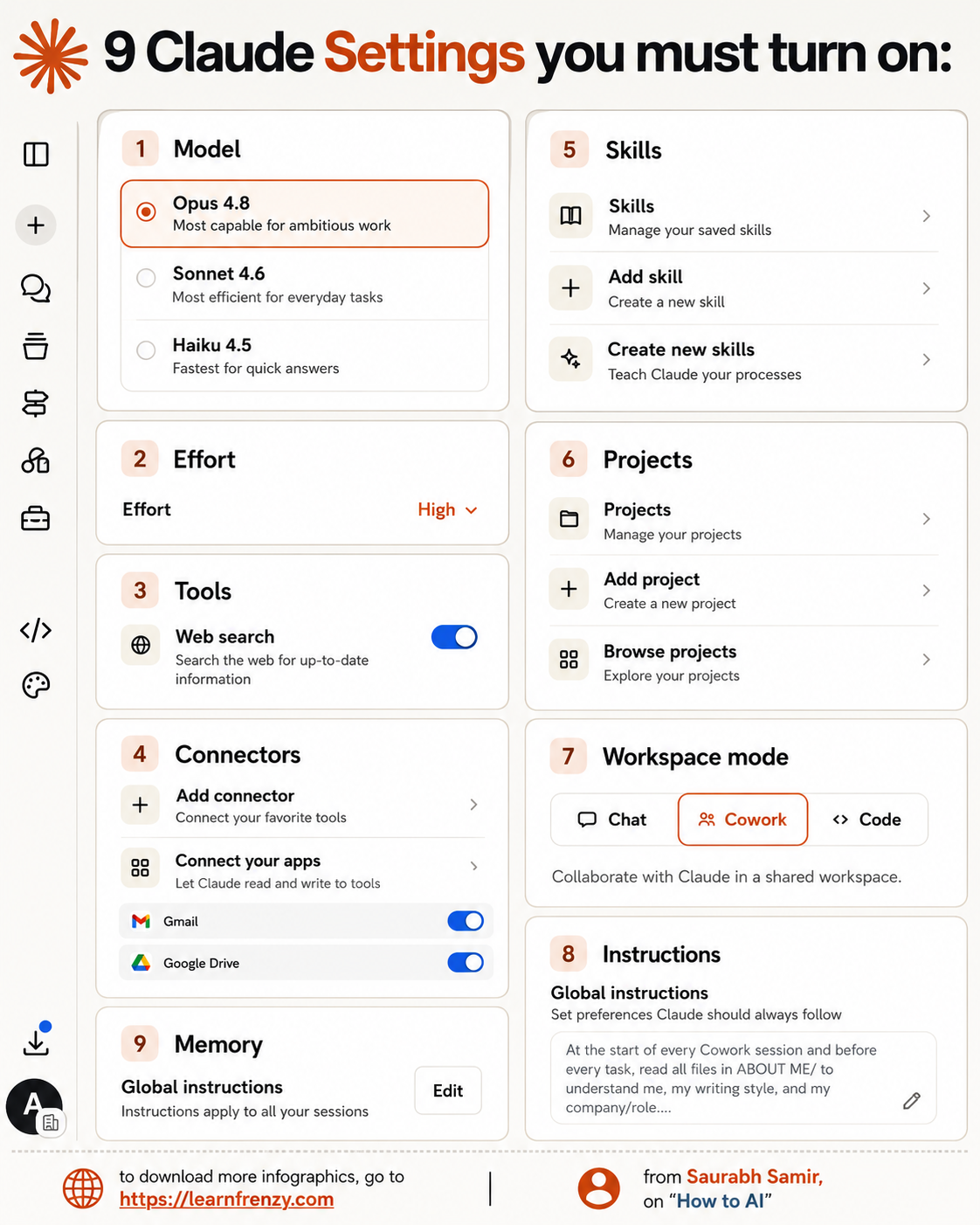
9 Claude Settings You Must Turn On
About This Cheat Sheet
Hi! I'm Saurabh Samir, and this cheat sheet reveals the 9 Claude settings you absolutely must turn on to get the most out of Claude AI. I've been using Claude extensively and these settings make a huge difference in the quality of responses, productivity, and overall experience. This guide covers enabling Artifacts for better code and document handling, turning on Projects to organize your work, enabling file uploads, using Vision capabilities, setting up custom instructions, managing your memory settings, adjusting response length, enabling markdown formatting, and turning on dark mode to save your eyes (seriously!). I've also included step-by-step instructions, and real examples showing the difference each setting makes. Whether you're a beginner or a power user, these 9 settings will transform how you use Claude AI.
1️⃣ Artifacts
- Separate window for code
- Clean document handling
- Organized designs
- Easier content copying
- Keeps conversations clean
- Professional output
2️⃣ Projects
- Organize conversations
- Group files by project
- Keep everything in one place
- Easy to find things
- Better workflow
- Team collaboration
3️⃣ File Uploads
- Upload PDFs & Word docs
- Excel files & images
- Unlocks full capabilities
- Analyze documents
- Extract information
- Better context
4️⃣ Vision
- Image analysis
- Chart reading
- Text extraction
- Describe images
- Understand diagrams
- Handwritten notes
5️⃣ Custom Instructions
- Set preferences & style
- Claude remembers what you like
- Personalized responses
- Consistent tone
- Save time
- Better results
6️⃣ Memory
- Personalization across chats
- Claude remembers you
- Consistent experience
- Saves repeating info
- Context awareness
- Better conversations
7️⃣ Response Length
- Adjust for your needs
- Longer for deep topics
- Shorter for quick answers
- Right amount of detail
- Better readability
- Time efficiency
8️⃣ Markdown Formatting
- Clean, readable responses
- Beautiful code formatting
- Professional output
- Easy to read
- Better structure
- Great for documentation
9️⃣ Dark Mode
- Save your eyes! 👀
- Reduces eye strain
- Better for night work
- Looks cool and modern
- Battery saving
- Focus improvement
1️⃣ Artifacts
Clean code & docs
Separate window2️⃣ Projects
Organize work
Group by project3️⃣ File Uploads
PDFs, Docs, Images
Full capabilities4️⃣ Vision
Image analysis
See & understand📋 9 Must-Turn-On Claude Settings
1️⃣ Artifacts
- Why You Need It: Separate window for code, documents, and designs — makes your work cleaner and more organized
- Where to Find It: Settings → Features → Artifacts
- My Tip: Essential for developers and content creators
2️⃣ Projects
- Why You Need It: Organize conversations and files by project — keeps everything in one place
- Where to Find It: Sidebar → Projects → Create New
- My Tip: Perfect for managing multiple clients or tasks
3️⃣ File Uploads
- Why You Need It: Upload PDFs, Word docs, Excel files, images — unlocks Claude's full capabilities
- Where to Find It: Settings → Features → File Uploads
- My Tip: Turn this on immediately for research and analysis
4️⃣ Vision
- Why You Need It: Image analysis and extraction — Claude can see and understand images
- Where to Find It: Settings → Features → Vision
- My Tip: Game-changer for analyzing charts and diagrams
5️⃣ Custom Instructions
- Why You Need It: Set preferences and style — Claude remembers what you like
- Where to Find It: Settings → Personalization → Custom Instructions
- My Tip: Saves hours by not repeating your preferences
6️⃣ Memory
- Why You Need It: Personalization across conversations — Claude remembers you
- Where to Find It: Settings → Personalization → Memory
- My Tip: Makes every conversation feel personalized
7️⃣ Response Length
- Why You Need It: Adjust for your needs — longer for deep topics, shorter for quick answers
- Where to Find It: Settings → Appearance → Response Length
- My Tip: Set to "Balanced" for everyday use
8️⃣ Markdown Formatting
- Why You Need It: Clean, readable responses — makes code and text look great
- Where to Find It: Settings → Appearance → Markdown Formatting
- My Tip: Essential for developers and writers
9️⃣ Dark Mode
- Why You Need It: Save your eyes! — especially if you work at night
- Where to Find It: Settings → Appearance → Theme
- My Tip: Turn it on immediately — your eyes will thank you
📊 How Each Setting Helps
1️⃣ Artifacts
- What It Does: Creates a separate window for generated content
- Why It's Important: Keeps conversations clean, makes it easy to copy content
2️⃣ Projects
- What It Does: Groups conversations and files by project
- Why It's Important: Stay organized, find things easily
3️⃣ File Uploads
- What It Does: Allows uploading and analyzing documents
- Why It's Important: Claude can read and analyze your files
4️⃣ Vision
- What It Does: Enables image analysis
- Why It's Important: Claude can "see" and describe images
5️⃣ Custom Instructions
- What It Does: Stores your preferences
- Why It's Important: Claude adapts to your style and needs
6️⃣ Memory
- What It Does: Remembers you across conversations
- Why It's Important: Personalized experience every time
7️⃣ Response Length
- What It Does: Controls how much Claude writes
- Why It's Important: Right amount of detail for any task
8️⃣ Markdown Formatting
- What It Does: Formats code and text beautifully
- Why It's Important: Makes responses readable and professional
9️⃣ Dark Mode
- What It Does: Changes the interface to dark colors
- Why It's Important: Reduces eye strain, looks cool
🔧 Step-by-Step Setup Guide
⭐ Before & After Examples
📋 Quick Reference: Settings Cheat Sheet
⚡ Essential Settings
- 1. Artifacts - Features → Artifacts
- 2. Projects - Sidebar → Projects
- 3. File Uploads - Features → File Uploads
- 4. Vision - Features → Vision
📝 Personalization
- 5. Custom Instructions - Personalization → Custom Instructions
- 6. Memory - Personalization → Memory
🎨 Appearance
- 7. Response Length - Appearance → Response Length
- 8. Markdown Formatting - Appearance → Markdown Formatting
- 9. Dark Mode - Appearance → Theme
✅ Claude Setup Checklist
🔧 Step 1: Core Features
- ☐ Turn on Artifacts
- ☐ Create your first Project
- ☐ Enable File Uploads
- ☐ Turn on Vision
📝 Step 2: Personalization
- ☐ Add Custom Instructions
- ☐ Turn on Memory
- ☐ Write your preferences
- ☐ Save your settings
🎨 Step 3: Appearance
- ☐ Adjust Response Length
- ☐ Turn on Markdown Formatting
- ☐ Enable Dark Mode
- ☐ Test your setup
🎯 9 Claude Settings You Must Turn On: Summary
The Golden Rule: These 9 settings take less than 5 minutes to set up but will transform your Claude experience forever. Turn them on once and enjoy the benefits every day.
My Top 3 Most Important Settings:
- 1️⃣ Artifacts: This is #1 for a reason. Without it, code and documents are mixed in with conversation text. With it, you get clean, separate windows for everything.
- 5️⃣ Custom Instructions: Set your preferences once and Claude will remember them forever. No more repeating "I prefer bullet points" or "Use a professional tone."
- 9️⃣ Dark Mode: It literally saves your eyes. If you spend more than an hour a day in Claude, this is non-negotiable.
Why These Settings Matter:
- Productivity: Artifacts, Projects, and File Uploads save hours of time
- Quality: Custom Instructions, Memory, and Markdown improve response quality
- Comfort: Dark Mode and Response Length make the experience enjoyable
- Capability: Vision unlocks Claude's full potential
My Memory Trick: Remember the 9 Settings in 3 Groups:
- ⚡ Essential (1-4): Artifacts, Projects, File Uploads, Vision
- 📝 Personalization (5-6): Custom Instructions, Memory
- 🎨 Appearance (7-9): Response Length, Markdown, Dark Mode
💡 My Pro Tips for Claude Settings
✅ Artifacts First
Turn on Artifacts immediately. It's the single most impactful setting for code and document work.
✅ Write Custom Instructions
Take 5 minutes to write your preferences once. It saves hours of repetition across conversations.
✅ Enable Vision for Charts
If you work with charts or diagrams, Vision is a game-changer. Claude can describe and analyze them.
✅ Use Projects for Clients
Create a separate Project for each client or project. Keeps everything organized and searchable.
✅ Dark Mode Always
I recommend turning on Dark Mode immediately. It reduces eye strain, especially during long sessions.
✅ Test Your Setup
After turning on all settings, test them with a sample conversation. Make sure everything works as expected.
🗺️ Quick Reference: Where to Find Each Setting
⚡ Features
- Artifacts → Settings → Features
- File Uploads → Settings → Features
- Vision → Settings → Features
📝 Personalization
- Custom Instructions → Settings → Personalization
- Memory → Settings → Personalization
🎨 Appearance
- Response Length → Settings → Appearance
- Markdown Formatting → Settings → Appearance
- Dark Mode → Settings → Appearance → Theme
📊 Settings at a Glance
⚡ Must-Turn-On (1-4)
- 1. Artifacts
- 2. Projects
- 3. File Uploads
- 4. Vision
📝 Personalize (5-6)
- 5. Custom Instructions
- 6. Memory
🎨 Polish (7-9)
- 7. Response Length
- 8. Markdown Formatting
- 9. Dark Mode
Download Cheat Sheet
Click the button below to download this high-resolution PNG cheat sheet.
Download PNG (1.8 MB)Preview
Still have questions?
We're here to help! Reach out to our support team for any queries.