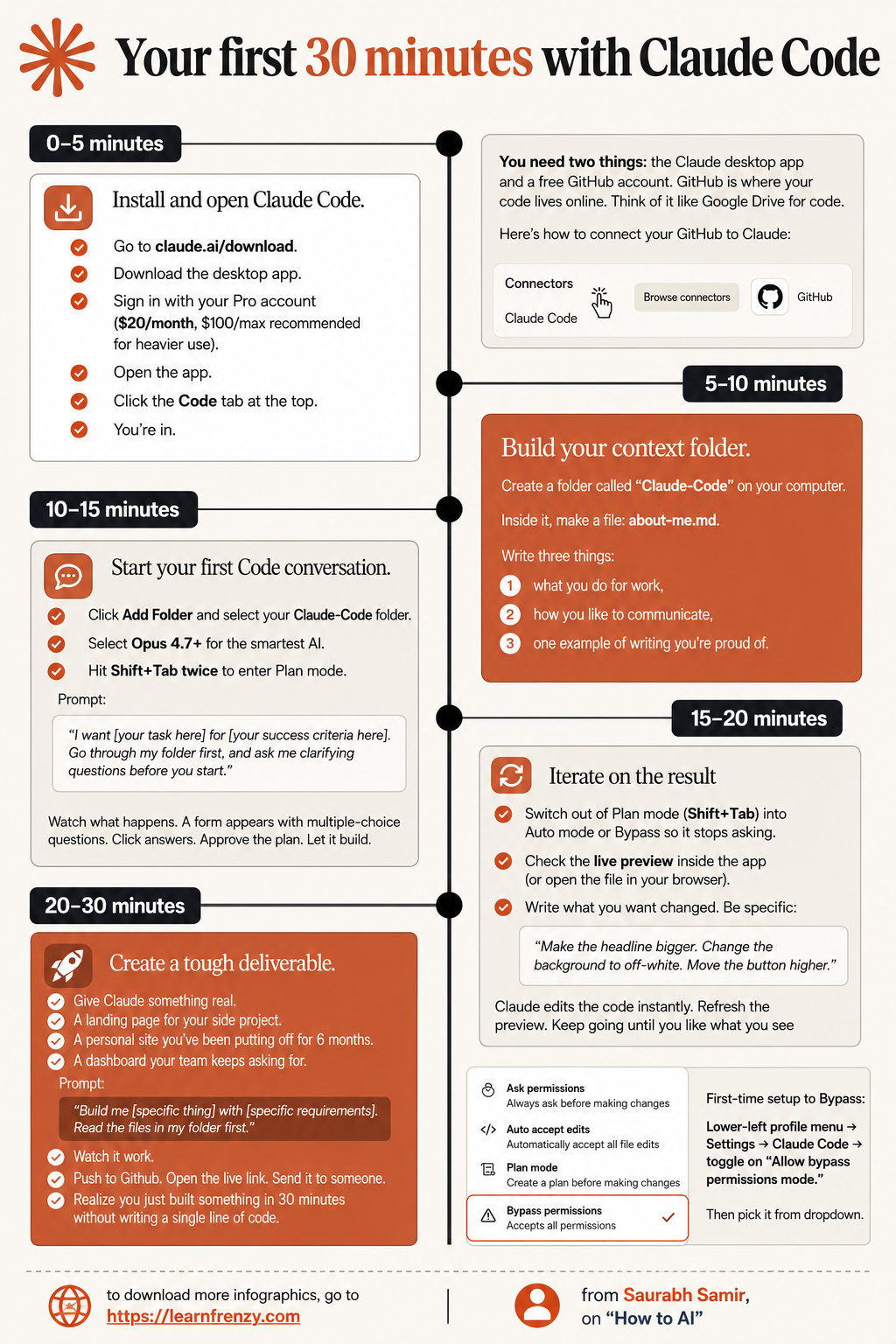
Your first 30 minutes with Claude Code
About This Cheat Sheet
Hi! I'm Saurabh Samir, and this cheat sheet is your quick-start guide for the first 30 minutes with Claude Code. If you're new to Claude Code and don't know where to start, you're in the right place. I've been using Claude Code for writing, debugging, and refactoring code, and I've put together this step-by-step guide to get you up and running in just 30 minutes. This guide covers setting up your environment, your first prompt (writing a simple function), generating code from scratch, debugging an error, refactoring existing code, writing tests, and documenting your code. I've also included my favorite starter prompts, common mistakes to avoid, and a checklist to make sure you're on the right track. Whether you're a beginner or an experienced developer, this cheat sheet will help you go from zero to productive with Claude Code in just 30 minutes.
⏰ 0–5 Minutes
- Go to claude.ai/download
- Download the desktop app
- Sign in with Pro account ($20/month)
- Open the app
- Click the Code tab at the top
- You're in!
⏰ 5–10 Minutes
- Create "Claude-Code" folder
- Create about-me.md file
- Write what you do for work
- Write how you like to communicate
- Add one example of writing you're proud of
- Build your context folder
⏰ 10–15 Minutes
- Click Add Folder
- Select your Claude-Code folder
- Select Opus 4.7+ (smartest AI)
- Hit Shift+Tab twice to enter Plan mode
- Write your first prompt
- Approve the plan
⏰ 15–20 Minutes
- Switch out of Plan mode (Shift+Tab)
- Enter Auto mode or Bypass
- Check the live preview
- Write what you want changed
- Be specific in your requests
- Iterate until you like it
⏰ 20–30 Minutes
- Give Claude something real to build
- A landing page for your side project
- A personal site you've been putting off
- A dashboard your team keeps asking for
- Push to GitHub
- Open the live link
🔑 Permission Modes
- Auto accept edits - Accept all edits
- Plan mode - Create plan before changes
- Bypass permissions - Accepts all permissions
- Always ask before making changes
- Start with Plan mode
- Use Auto mode for speed
⏰ 0-5 Min
Install & Open
Download app⏰ 5-10 Min
Build Context
about-me.md⏰ 10-15 Min
First Prompt
Plan mode⏰ 20-30 Min
Build Real
Push to GitHub⏰ Your First 30 Minutes with Claude Code
📥 0–5 Minutes: Install & Open
- Go to claude.ai/download
- Download the desktop app
- Sign in with your Pro account ($20/month)
- Open the app
- Click the Code tab at the top
- You're in!
- 💡 My Tip: Pro account is recommended for code features
📁 5–10 Minutes: Build Your Context Folder
- Create a folder called "Claude-Code"
- Inside it, make a file: about-me.md
- Write three things:
- 1. What you do for work
- 2. How you like to communicate
- 3. One example of writing you're proud of
- 💡 My Tip: This helps Claude understand your style
💬 10–15 Minutes: Start Your First Code Conversation
- Click Add Folder
- Select your Claude-Code folder
- Select Opus 4.7+ for smartest AI
- Hit Shift+Tab twice to enter Plan mode
- Write your prompt
- 💡 My Tip: Start with Plan mode to stay in control
📝 Your First Prompt Template
🎯 Example Prompts That Work
⏰ 15–20 Minutes: Iterate on the Result
🔄 Mode Switching
- Switch out of Plan mode (Shift+Tab)
- Enter Auto mode or Bypass
- This stops Claude from asking questions
- Faster iteration process
- 💡 My Tip: Use Auto mode for quick changes
👁️ Live Preview
- Check the live preview inside the app
- Or open the file in your browser
- See changes in real-time
- Identify what needs improvement
- 💡 My Tip: Keep preview open while iterating
📝 Be Specific in Feedback
- "Make the headline bigger"
- "Change the background to off-white"
- "Move the button higher"
- "Add more padding around the text"
- 💡 My Tip: Specific feedback = faster results
⏰ 20–30 Minutes: Create a Tough Deliverable
🚀 Give Claude Something Real
- A landing page for your side project
- A personal site you've been putting off for 6 months
- A dashboard your team keeps asking for
- A feature your app has been missing
- 💡 My Tip: Real projects = real motivation
📝 The Prompt
- "Build me [specific thing] with [specific requirements]"
- "Read the files in my folder first"
- "Use my about-me.md for context"
- "Make it responsive and modern"
- 💡 My Tip: Be specific about what you want
✅ What Happens Next
- Watch it work — Claude builds your project
- Push to GitHub
- Open the live link
- Send it to someone
- Realize you just built something in 30 minutes without writing a single line of code.
🔑 Permission Modes Explained
❓ Ask Permissions
- Always ask before making changes
- Best for beginners
- Full control over edits
- Learn what Claude is doing
- 💡 Use for: Learning and understanding
✅ Auto Accept Edits
- Automatically accept all file edits
- Faster workflow
- Trust Claude's changes
- Less interruption
- 💡 Use for: Confident users
📋 Plan Mode
- Create a plan before making changes
- Review before execution
- Ask clarifying questions
- Stay in control
- 💡 Use for: Complex projects
⚡ Bypass Permissions
- Accepts all permissions
- Fastest workflow
- No interruptions
- Maximum speed
- 💡 Use for: Experienced users
🎮 Quick Reference: Mode Switching
⌨️ Keyboard Shortcuts
- Shift+Tab: Toggle between modes
- Shift+Tab twice: Enter Plan mode
- Shift+Tab once: Exit Plan mode
- Esc: Cancel current action
- 💡 My Tip: Practice these shortcuts to speed up your workflow
📊 Mode Comparison
- Plan Mode: Best for complex tasks (asks clarifying questions)
- Auto Mode: Best for iteration (makes changes automatically)
- Bypass Mode: Best for speed (no permissions required)
- Ask Mode: Best for learning (asks before each change)
🎯 Your First 30 Minutes with Claude Code: Summary
The Golden Rule: Start with Plan mode, build your context folder, and give Claude something real to build. In just 30 minutes, you'll go from zero to deployed.
My 30-Minute Checklist:
- ✅ 0-5 Min: Download the app, sign in, open the Code tab
- ✅ 5-10 Min: Create your "Claude-Code" folder and about-me.md
- ✅ 10-15 Min: Add folder, select Opus 4.7+, enter Plan mode, write your prompt
- ✅ 15-20 Min: Iterate on the result, check live preview, give feedback
- ✅ 20-30 Min: Build something real, push to GitHub, open the live link
Common Mistakes to Avoid:
- ❌ Not creating a context folder → ✅ Create Claude-Code folder with about-me.md
- ❌ Using the wrong model → ✅ Select Opus 4.7+ for smartest AI
- ❌ Not using Plan mode → ✅ Start with Plan mode to stay in control
- ❌ Vague prompts → ✅ Be specific: "Build me [specific thing] with [requirements]"
- ❌ Not iterating → ✅ Give specific feedback and keep refining
My Proven Strategy: The "Context-Plan-Build-Iterate" technique – build context first, plan with Claude, build something real, and iterate until it's perfect.
My Memory Trick: Remember the 5 Steps of Claude Code Success:
- 📁 Context: Build your Claude-Code folder
- 📝 Plan: Use Plan mode for first prompt
- 🚀 Build: Give Claude something real to build
- 🔄 Iterate: Give feedback and refine
- 🌐 Deploy: Push to GitHub and share
💡 My Pro Tips for Claude Code Success
✅ Start with Plan Mode
Always start with Plan mode for your first prompt. This ensures Claude understands your requirements before building.
✅ Build Your Context Folder
Spend 5 minutes creating your Claude-Code folder with about-me.md. This helps Claude understand your style and needs.
✅ Use Opus 4.7+
Opus 4.7+ is the smartest model for coding tasks. Use it for complex projects and high-quality results.
✅ Be Specific in Feedback
Instead of "I don't like it," say "Make the headline bigger and change the background to off-white."
✅ Check the Live Preview
Always check the live preview to see changes in real-time. This saves time and improves your feedback.
✅ Push to GitHub
Push your work to GitHub and open the live link. Share it with someone to celebrate your 30-minute build!
⏰ 30-Minute Timeline at a Glance
⏰ 0-5
- Install app
- Sign in
- Open Code tab
⏰ 5-10
- Create folder
- about-me.md
- Build context
⏰ 10-15
- Add folder
- Plan mode
- First prompt
⏰ 15-20
- Iterate
- Live preview
- Feedback
⏰ 20-30
- Build real
- GitHub push
- Live link
Download Cheat Sheet
Click the button below to download this high-resolution PNG cheat sheet.
Download PNG (2.0 MB)Preview
Still have questions?
We're here to help! Reach out to our support team for any queries.