How To Duplicate Yourself In Claude
About This Cheat Sheet
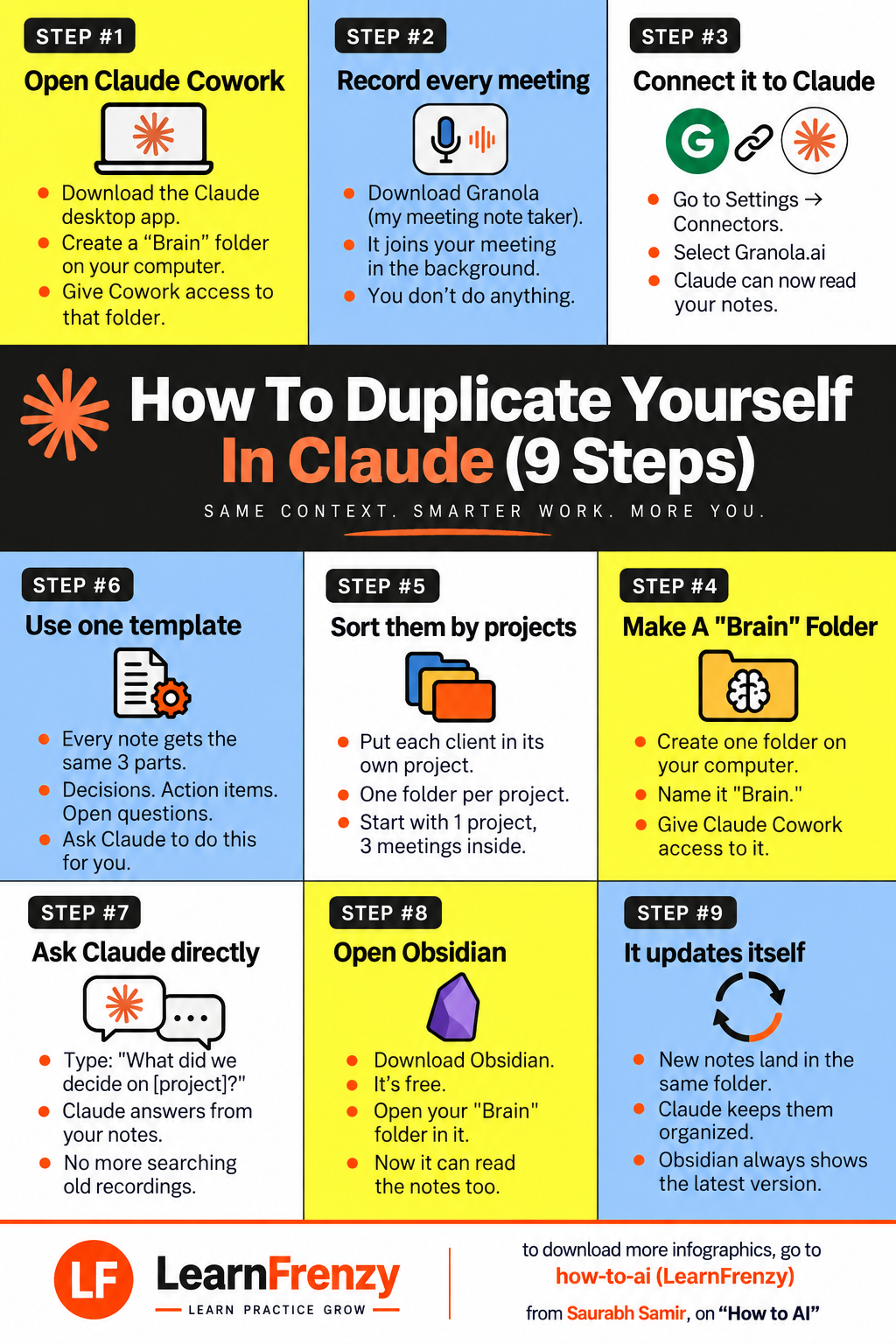
Hey! I'm Saurabh Samir, and this is my cheat sheet for how to duplicate yourself in Claude. Same context. Smarter work. More you. I've been using Claude for years, and this 9-step system has completely transformed how I work. It's not about working harder — it's about building a system that remembers everything, organizes everything, and answers every question you have. This guide covers Step 1 (Open Claude Cowork), Step 2 (Record every meeting), Step 3 (Connect it to Claude), Step 4 (Make a "Brain" folder), Step 5 (Sort them by projects), Step 6 (Use one template), Step 7 (Ask Claude directly), Step 8 (Open Obsidian), and Step 9 (It updates itself). Whether you're a freelancer managing multiple clients, a consultant with too many meetings, or a team lead who needs to remember everything, this cheat sheet will help you duplicate yourself in Claude.
Step 1: Open Claude Cowork
- Download - Claude desktop app
- Create - "Brain" folder on computer
- Give access - Cowork to that folder
- Result: Claude can read your files
Step 2: Record Every Meeting
- Download - Granola (meeting note taker)
- It joins - Your meeting in background
- You do nothing - It works automatically
- Result: Every meeting gets recorded
Step 3: Connect It to Claude
- Go to - Settings → Connectors
- Select - Granola.ai
- Claude can now - Read your notes
- Result: Your meetings are in Claude
Step 4: Make a "Brain" Folder
- Create - One folder on computer
- Name it - "Brain"
- Give Claude Cowork - Access to it
- Result: Central hub for everything
Step 5: Sort by Projects
- Each client - Its own project
- One folder - Per project
- Start with - 1 project, 3 meetings
- Result: Organized by client
Step 6: Use One Template
- Every note - Same 3 parts
- Decisions - What was decided
- Action items - What needs doing
- Open questions - What's still unresolved
Step 7: Ask Claude Directly
- Type - "What did we decide on [project]?"
- Claude answers - From your notes
- No more searching - Old recordings
- Result: Instant answers
Step 8: Open Obsidian
- Download - Obsidian (it's free)
- Open - Your "Brain" folder
- It reads - Your notes too
- Result: Visual note organization
Step 9: It Updates Itself
- New notes - Land in same folder
- Claude - Keeps them organized
- Obsidian - Always shows latest
- Result: Self-updating system
🧠 9 Steps
Duplicate Yourself
Full system📁 Brain Folder
Central Hub
Everything in one place🎙️ Granola
Meeting Notes
Automatic recording📝 Obsidian
Note Organization
Visual interface📋 The 9 Steps
| Step | Title | What To Do |
|---|---|---|
| 1 | Open Claude Cowork | Download Claude desktop app, create "Brain" folder, give Cowork access |
| 2 | Record every meeting | Download Granola, it joins meeting in background, you do nothing |
| 3 | Connect it to Claude | Settings → Connectors → Select Granola.ai, Claude reads your notes |
| 4 | Make A "Brain" Folder | Create one folder on computer, name it "Brain", give Cowork access |
| 5 | Sort them by projects | Put each client in its own project, one folder per project |
| 6 | Use one template | Every note gets same 3 parts: Decisions, Action items, Open questions |
| 7 | Ask Claude directly | Type "What did we decide on [project]?", Claude answers from notes |
| 8 | Open Obsidian | Download Obsidian (free), open "Brain" folder, it reads notes too |
| 9 | It updates itself | New notes land in same folder, Claude organizes, Obsidian shows latest |
⚡ Quick Setup Summary
| Tool | Purpose |
|---|---|
| Claude Cowork | AI assistant with file access |
| Granola | Meeting note taker |
| Obsidian | Note organization and reading |
| Brain Folder | Central folder for all notes |
| Projects | Organize by client |
| Template | Standard note format (Decisions, Action items, Open questions) |
📊 Duplicate Yourself in Claude — Step by Step
• Create "Brain" folder
• Give Cowork access
• It joins meeting in background
• You do nothing
• Select Granola.ai
• Claude reads your notes
• Name it "Brain"
• Give Claude Cowork access
• One folder per project
• Start with 1 project, 3 meetings
• Decisions, Action items, Open questions
• Ask Claude to do this for you
• Claude answers from your notes
• No more searching old recordings
• Open your "Brain" folder
• It reads the notes too
• Claude keeps them organized
• Obsidian always shows latest version
📝 The 3-Part Note Template
💡 Why This Works
| Benefit | How It Works |
|---|---|
| Never forget a decision | Every meeting is recorded and stored in your Brain folder |
| Instant answers | Ask Claude any question about any project, get answers from your notes |
| Organized by client | Each project has its own folder, everything stays separate |
| Consistent format | Every note has Decisions, Action Items, Open Questions |
| Self-updating | New notes land in the same folder, Claude and Obsidian keep up |
| Duplicate yourself | Claude remembers everything so you don't have to |
🎯 How To Duplicate Yourself In Claude — Quick Revision
The Golden Rule: Same context. Smarter work. More you. This 9-step system creates a self-updating brain for your business — one that remembers every decision, organizes every meeting, and answers every question instantly.
Quick Memory Tricks:
- 📌 Steps 1-3: Setup — Cowork, Granola, Connect
- 📌 Steps 4-6: Structure — Brain folder, Projects, Template
- 📌 Steps 7-9: Use — Ask Claude, Open Obsidian, Self-updating
- 📌 The Template: "Decisions, Action Items, Open Questions"
- 📌 The Result: A brain that remembers everything, organized by project
Daily Checklist:
- ✅ Open Claude Cowork (access to Brain folder)
- ✅ Granola records every meeting automatically
- ✅ Notes land in the Brain folder, organized by project
- ✅ Ask Claude: "What did we decide on [project]?"
- ✅ Obsidian keeps everything visually organized
- ✅ New notes update automatically — no manual work
💡 Pro Tips for Duplicating Yourself in Claude
✅ Start with 1 Project
Don't try to organize everything at once. Start with 1 project and 3 meetings. Get the system working, then expand.
✅ Use the Same Template
Consistency is key. Every note gets Decisions, Action Items, Open Questions. Ask Claude to format them for you.
✅ Ask Claude Directly
Don't search through recordings. Type "What did we decide on [project]?" and Claude answers from your notes instantly.
✅ Open Obsidian for Visual Organization
Obsidian is free and reads your Brain folder. It gives you a visual graph of everything you've captured.
✅ Let It Update Itself
Once set up, the system runs itself. New meetings get recorded, notes get organized, and Claude keeps everything up to date.
✅ Duplicate Yourself
This system is your second brain. It remembers every decision so you can focus on what actually matters.
from Saurabh Samir, on "How to AI"
Download Cheat Sheet
Click the button below to download this high-resolution PNG cheat sheet.
Download PNG (1.2 MB)Preview
Still have questions?
We're here to help! Reach out to our support team for any queries.