Claude Made Simple
About This Cheat Sheet
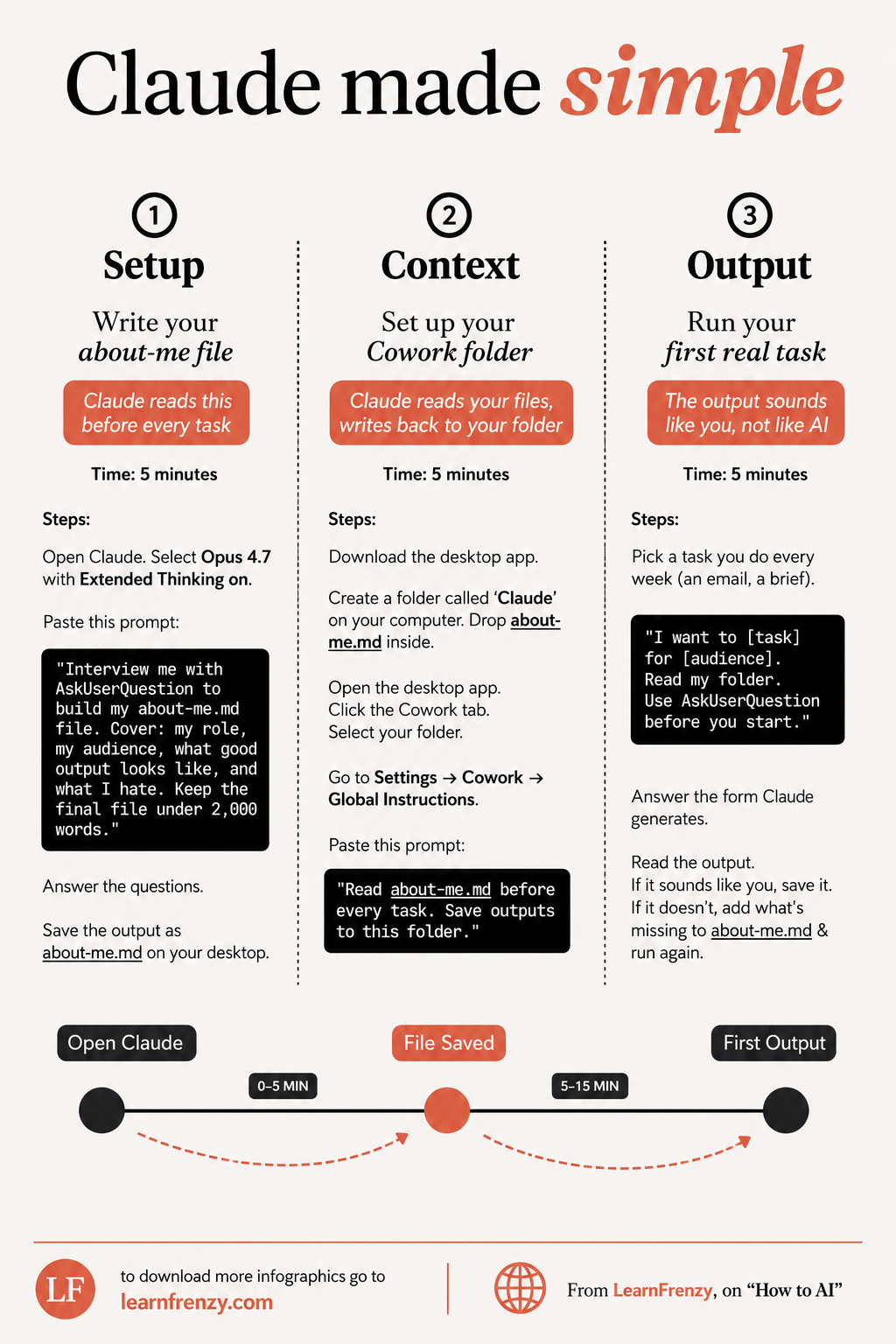
Hey! I'm Saurabh Samir, and this is my cheat sheet for Claude Made Simple — a step-by-step beginner's guide that gets you set up in just 15 minutes. If you've ever felt overwhelmed by AI, or just wanted a simple way to get Claude sounding like you without the hassle, you're in the right place. This guide covers SETUP (Write your about-me file — 5 minutes), CONTEXT (Set up your Cowork folder — 5 minutes), and OUTPUT (Run your first real task — 5 minutes). I've also included the exact prompts to use, step-by-step instructions, and a complete 15-minute timeline. Whether you're completely new to Claude or just want a simpler workflow, this cheat sheet will have you up and running in 15 minutes.
📝 SETUP — 5 Minutes
- Write about-me.md - Your personal voice file
- Claude reads this before every task
- Open Claude - Launch the app
- Select Opus 4.7 - With Extended Thinking
- Use AskUserQuestion - Interview prompt
- Cover: role, audience, good output, what you hate
- Keep under 2,000 words
- Save as about-me.md on desktop
📁 CONTEXT — 5 Minutes
- Set up Cowork folder - Claude reads/writes files
- Download desktop app
- Create folder called 'Claude'
- Drop about-me.md inside
- Open desktop app
- Click Cowork tab
- Select your folder
- Add Global Instructions
📤 OUTPUT — 5 Minutes
- Run your first real task
- Output sounds like you, not AI
- Pick a weekly task - Email, brief, newsletter
- Use prompt: "I want to [task] for [audience]"
- Add: "Read my folder. Use AskUserQuestion before you start."
- Answer the form - Claude generates
- Read the output
- Save or iterate - Update about-me.md if needed
⏱️ 15-Minute Timeline
- 0-5 min: Create about-me.md
- 5-10 min: Set up Cowork folder
- 10-15 min: Run first task
- ✅ Done! Claude is set up
- No more: Re-explaining yourself
- No more: Generic AI outputs
- Just: One-time setup, forever use
- Result: You're ready to go!
📋 Prompt Templates
- Setup: "Interview me with AskUserQuestion to build my about-me.md file. Cover: my role, my audience, what good output looks like, and what I hate. Keep the final file under 2,000 words."
- Global Instructions: "Read about-me.md before every task. Save outputs to this folder."
- Output: "I want to [task] for [audience]. Read my folder. Use AskUserQuestion before you start."
💡 Evaluation Checklist
- Voice: Does it sound like you?
- Tone: Is it right for your audience?
- Vocabulary: Words you would use?
- Examples: Relevant to your work?
- Structure: Matches your preferences?
- Cringe Factor: Any words you hate?
- Accuracy: Is the information correct?
- Quality: Meets your standards?
⏱️ 15 Min
Total Setup Time
5 + 5 + 5 minutes📝 3 Phases
Setup, Context, Output
Simple & clear📄 1 File
about-me.md
Your voice, once🎯 1 Task
Run and done
First output done⏱️ Quick Overview — 15-Minute Setup
| Phase | Time | Action | Result |
|---|---|---|---|
| Setup | 0-5 min | Create about-me.md | Personal voice file |
| Context | 5-10 min | Set up Cowork folder | Claude reads your files |
| Output | 10-15 min | Run first task | Output sounds like you |
| Total | 15 min | Complete setup | ✅ Ready to use! |
📝 Phase 1: Setup — Complete Steps
| Step | Action | Details |
|---|---|---|
| 1 | Open Claude | Launch the app or go to claude.ai |
| 2 | Select Model | Choose Opus 4.7 with Extended Thinking on |
| 3 | Paste Prompt | Copy the interview prompt below |
| 4 | Answer Questions | Respond to AskUserQuestion interview |
| 5 | Save File | Save output as about-me.md on desktop |
📝 The Prompt to Use
Cover: my role, my audience, what good output looks like, and what I hate.
Keep the final file under 2,000 words."
📄 What about-me.md Should Cover
• My audience
• What good output looks like
• What I hate
• Keep under 2,000 words
📁 Phase 2: Context — Complete Steps
| Step | Action | Details |
|---|---|---|
| 1 | Download Desktop App | Install Claude desktop app |
| 2 | Create Folder | Make a folder called 'Claude' on your computer |
| 3 | Add File | Drop about-me.md inside the folder |
| 4 | Open Cowork | Open desktop app, click Cowork tab |
| 5 | Select Folder | Choose your 'Claude' folder |
| 6 | Set Instructions | Go to Settings → Cowork → Global Instructions |
| 7 | Paste Prompt | Copy the global instructions prompt below |
📝 The Global Instructions Prompt
📤 Phase 3: Output — Complete Steps
| Step | Action | Details |
|---|---|---|
| 1 | Pick Task | Choose a task you do every week (email, brief, etc.) |
| 2 | Use Prompt | "I want to [task] for [audience]. Read my folder. Use AskUserQuestion before you start." |
| 3 | Answer Form | Complete the form Claude generates |
| 4 | Review Output | Read what Claude produces |
| 5 | Evaluate | Does it sound like you? |
| 6 | Save or Iterate | Save if good, or update about-me.md and run again |
⏱️ Complete 15-Minute Workflow
📋 Prompt Templates
| Phase | Purpose | Prompt Template |
|---|---|---|
| Setup | Create about-me.md | "Interview me with AskUserQuestion to build my about-me.md file. Cover: my role, my audience, what good output looks like, and what I hate. Keep the final file under 2,000 words." |
| Context | Global Instructions | "Read about-me.md before every task. Save outputs to this folder." |
| Output | Run first task | "I want to [task] for [audience]. Read my folder. Use AskUserQuestion before you start." |
📝 Output Prompt Example
💡 Task Ideas — Your First Output
| Task Type | Example Prompt |
|---|---|
| "I want to write a follow-up email to a client. Read my folder. Use AskUserQuestion before you start." | |
| Brief | "I want to create a project brief for my team. Read my folder. Use AskUserQuestion before you start." |
| Newsletter | "I want to write a weekly newsletter for my audience. Read my folder. Use AskUserQuestion before you start." |
| Proposal | "I want to draft a proposal for a new project. Read my folder. Use AskUserQuestion before you start." |
| Social Post | "I want to create a LinkedIn post about our latest work. Read my folder. Use AskUserQuestion before you start." |
✅ Evaluation Checklist — Does It Sound Like You?
| Check | Question | Yes/No |
|---|---|---|
| Voice | Does it sound like your writing style? | ⬜ |
| Tone | Is the tone appropriate for your audience? | ⬜ |
| Vocabulary | Are the words ones you would use? | ⬜ |
| Examples | Are the examples relevant to your work? | ⬜ |
| Structure | Does the structure match your preferences? | ⬜ |
| Cringe Factor | Any words or patterns you hate? | ⬜ |
| Accuracy | Is the information correct? | ⬜ |
| Quality | Does it meet your standards? | ⬜ |
🔄 If Output Doesn't Sound Like You — Iteration
| Issue | Fix |
|---|---|
| Wrong voice | Add voice examples to about-me.md |
| Bad words | Add banned words to about-me.md |
| Wrong audience | Clarify audience in about-me.md |
| Wrong format | Add format preferences to about-me.md |
| Too formal/too casual | Adjust tone description in about-me.md |
| Missing context | Add more context to about-me.md |
| Generic content | Add specific examples to about-me.md |
🔄 Iteration Process
2. Add what's missing to about-me.md
3. Run the task again
4. Output should now sound like you! ✅
❓ Common Questions
| Question | Answer |
|---|---|
| What if I don't have about-me.md? | Follow Phase 1 setup to create it |
| Can I update about-me.md later? | Yes, update it anytime and Claude will use it |
| How many tasks can I run? | Unlimited — Claude reads about-me.md every time |
| Do I need to keep Claude open? | Yes, for desktop app setup |
| What if output still doesn't sound like me? | Keep adding more details to about-me.md and retry |
| Can I use this for different tasks? | Yes, any writing task works |
| How long does setup take? | Exactly 15 minutes total |
✅ The Results — What You Get
| After Setup | Before Setup |
|---|---|
| Output sounds like you | Output sounds like generic AI |
| No repetition of prompts | Re-explaining every time |
| One-time setup | Constant setup |
| 15 minutes total | 15+ minutes per task |
| Consistent voice | Inconsistent voice |
| No AI tells | AI patterns everywhere |
| Quality improves over time | Quality stays the same |
🎯 Claude Made Simple — Quick Revision
The Golden Rule: Set up once, use forever. In just 15 minutes — 5 minutes for each phase — you'll have Claude writing like you, not like generic AI.
Quick Memory Tricks:
- 📌 Phase 1 (5 min): about-me.md — "Who you are, what you do, what you hate"
- 📌 Phase 2 (5 min): Cowork folder — "Read about-me.md, save outputs here"
- 📌 Phase 3 (5 min): Run task — "I want to [task] for [audience]. Read my folder. Use AskUserQuestion."
- 📌 Total: 15 minutes to transform your Claude experience
Daily Checklist:
- ✅ Open Cowork (desktop app)
- ✅ about-me.md loads automatically
- ✅ Type your task prompt
- ✅ Answer AskUserQuestion form
- ✅ Get output that sounds like you
- ✅ Save or iterate
💡 Pro Tips for Claude Made Simple
✅ Keep about-me.md Under 2,000 Words
Concise files are more effective. Claude reads the entire file every time, so keep it focused and dense with signal.
✅ Use AskUserQuestion Every Time
Always include "Use AskUserQuestion before you start." This ensures Claude understands your task before generating output.
✅ Iterate Until It Sounds Like You
If the output doesn't sound like you, don't accept it. Add what's missing to about-me.md and run the task again.
✅ Update about-me.md Over Time
Your voice evolves. Update about-me.md as you refine your style, audience, and preferences.
✅ Use the Cowork Folder for Everything
Put all your reference files in the Cowork folder. Claude will read everything and write outputs back to the same folder.
✅ Save Good Outputs
When Claude produces something you love, save it. Use it as a reference for future tasks and to improve about-me.md.
from Saurabh Samir, on "How to AI"
Download Cheat Sheet
Click the button below to download this high-resolution PNG cheat sheet.
Download PNG (1.5 MB)Preview
Still have questions?
We're here to help! Reach out to our support team for any queries.