4 Things to Set up in Claude in 2026
About This Cheat Sheet
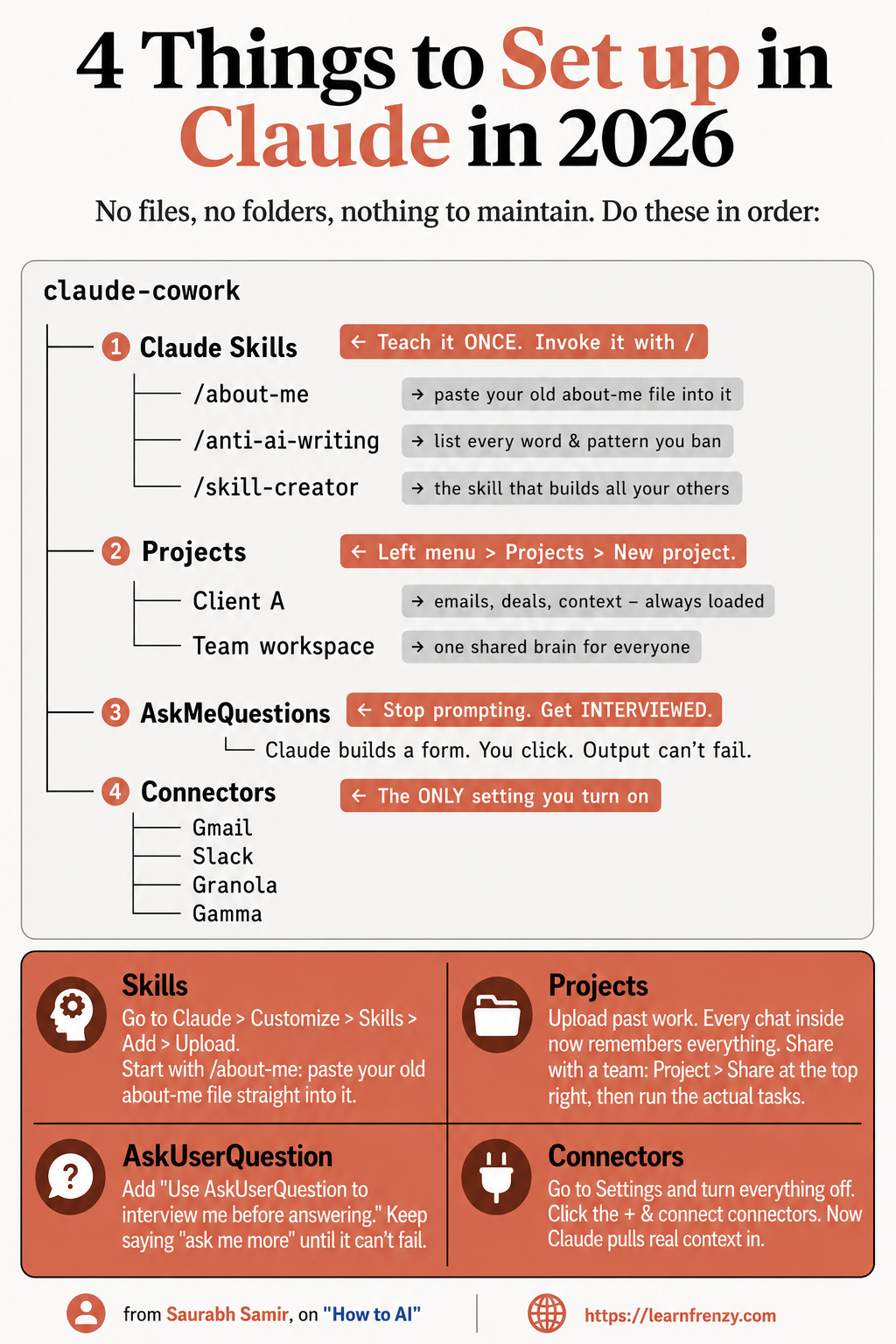
Hey! I'm Saurabh Samir, and this is my cheat sheet for the 4 things you absolutely must set up in Claude in 2026. No files, no folders, nothing to maintain - just clean, powerful setup steps that will transform how you work. I've been using Claude for years, and these four things are the foundation of my entire workflow. This guide covers Claude Skills (3 essential skills: /about-me, /anti-ai-writing, /skill-creator - teach once, invoke with /), Projects (Client A, Team workspace, upload emails/deals/context, shared brain for everyone), AskMeQuestions (Claude builds a form, you click, output cannot fail), and Connectors (Gmail, Slack, Granola, Gamma - pulling real context in). I've also included step-by-step setup instructions, real-world examples, and the exact prompts I use. Whether you're a knowledge worker, developer, or team lead, these 4 things will save you hours and eliminate frustration.
🧠 Skill #1: /about-me
- Purpose: Personal context & identity
- Setup: Paste old about-me file
- Use: /about-me in any chat
- Contains: Who you are, what you do
- Example: "I'm Saurabh, AI educator..."
- Result: Claude knows you instantly
🚫 Skill #2: /anti-ai-writing
- Purpose: Ban words and patterns
- Setup: List every word & pattern you hate
- Use: /anti-ai-writing before any content
- Contains: Banned words, phrases, patterns
- Example: "delve, unlock, leverage"
- Result: AI-generated content sounds human
🔧 Skill #3: /skill-creator
- Purpose: Build all other skills
- Setup: The skill builder meta-tool
- Use: /skill-creator to make new skills
- Contains: Instructions to create skills
- Example: "Create /draft-email skill"
- Result: Endless custom skills
📁 Projects
- Purpose: Shared context for team
- Setup: Left menu > Projects > New project
- Upload: Emails, deals, context
- Share: Project > Share at top right
- Benefit: Always loaded — emails, deals, context ready
- Result: One shared brain for everyone
❓ AskMeQuestions
- Purpose: Prevent failures
- Setup: Turn on ONLY setting
- Use: "Use AskUserQuestion to interview me"
- Benefit: Claude builds form, you click
- Result: Output cannot fail
- Key: Keep saying "ask me more"
🔌 Connectors
- Purpose: Real-time context
- Setup: Settings > turn everything OFF
- Connect: Gmail, Slack, Granola, Gamma
- Benefit: Pull real context in
- Result: Claude has live data
- Key: Only setting you turn on
🧠 3 Skills
/about-me, /anti-ai-writing
/skill-creator📁 Projects
Shared Brain
Always loaded❓ AskMeQuestions
Cannot Fail
Claude interviews you🔌 Connectors
Gmail, Slack
Real-time context📋 The 4 Essential Setup Steps
Step
- 1
- 2
- 3
- 4
Feature
- Claude Skills
- Projects
- AskMeQuestions
- Connectors
Key Action
- Teach once with /about-me, /anti-ai-writing, /skill-creator
- Create Client A and Team workspace in left menu
- Turn on ONLY setting, get interviewed
- Connect Gmail, Slack, Granola, Gamma
Purpose
- Reusable commands
- Shared context
- Prevent failures
- Real-time context
🧠 Claude Skills — The 3 Essential Skills
Skill
- /about-me
- /anti-ai-writing
- /skill-creator
Purpose
- Personal context & identity
- Ban words and patterns
- Build all other skills
Setup Method
- Paste old about-me file
- List every word & pattern you hate
- The skill builder meta-tool
📁 Projects Setup Guide
Step
- 1
- 2
- 3
- 4
- 5
- 6
Action
- Navigate — Left menu > Projects
- Create — Click "New project"
- Name — Client A, Team workspace
- Upload — Emails, deals, context
- Share — Project > Share at top right
- Use — Run actual tasks
Details
- Find Projects in left sidebar
- Start fresh project
- Name for easy identification
- All relevant files and context
- Invite team members
- Every chat remembers everything
🔌 Connectors Setup
Step
- 1
- 2
- 3
- 4
Action
- Go to Settings
- Turn everything OFF
- Connect Gmail, Slack, Granola, Gamma
- Now Claude pulls real context in
Result
- Clean, minimal setup
- Only connectors enabled
- Real-time data flow
- Live context for every chat
🚀 4 Things to Set Up — Quick Visual Guide
/about-me → /anti-ai-writing → /skill-creator
↓
2️⃣ Projects
Client A → Team workspace → Upload context → Share
↓
3️⃣ AskMeQuestions
"Use AskUserQuestion to interview me" → Keep asking "ask me more"
↓
4️⃣ Connectors
Settings OFF → Gmail, Slack, Granola, Gamma → Real-time context
🧠 Skills Setup Workflow
Step
- 1
- 2
- 3
- 4
Action
- Claude > Customize > Skills > Add > Upload
- Start with /about-me — paste old about-me file
- Add /anti-ai-writing — list banned words
- Add /skill-creator — the meta-tool
Result
- Skills uploaded
- Instant / commands
- Personalized AI
- Infinite custom skills
📁 Projects Setup Quick Reference
❓ AskMeQuestions Setup Quick Reference
🎯 4 Things to Set Up in Claude in 2026 — Quick Revision
The Golden Rule: No files, no folders, nothing to maintain. Set these 4 things up once and watch your productivity skyrocket.
Quick Memory Tricks:
- 📌 Claude Skills: "/about-me, /anti-ai-writing, /skill-creator — teach once, invoke with /"
- 📌 Projects: "Client A → Team workspace → Upload → Share → Always loaded"
- 📌 AskMeQuestions: "ONLY setting → 'ask me more' → Cannot fail"
- 📌 Connectors: "Settings OFF → Gmail, Slack, Granola, Gamma → Real-time context"
Daily Checklist:
- ✅ Start each chat with /about-me (personal context)
- ✅ Use /anti-ai-writing (ban AI patterns)
- ✅ Work inside Project for shared context
- ✅ End prompt with "Use AskUserQuestion to interview me"
- ✅ Connectors pull real-time data automatically
💡 Pro Tips for the 4 Essential Setups
✅ Start with /about-me
Every chat should begin with /about-me. This gives Claude instant context about who you are and what you do.
✅ Build /anti-ai-writing First
Before any content generation, use /anti-ai-writing. This bans all the words and patterns that make AI writing obvious.
✅ Create Projects for Everything
Every client, every team, every major project gets its own Project. This keeps context organized and always available.
✅ Use AskMeQuestions Relentlessly
End every prompt with "Use AskUserQuestion to interview me before answering." Keep saying "ask me more" until Claude covers everything.
✅ Only Turn on Connectors
In Settings, turn everything OFF. Only enable the connectors you need. This keeps Claude focused and clean.
✅ Share Projects with Your Team
Projects are a shared brain. Upload context once, share it with everyone, and all conversations use the same context.
📋 Quick Reference — All Commands
Command
- /about-me
- /anti-ai-writing
- /skill-creator
- AskUserQuestion
Purpose
- Personal context & identity
- Ban words and patterns
- Build all other skills
- Interview mode — cannot fail
When to Use
- Every chat, first thing
- Before any content generation
- When creating new skills
- End of every prompt
from Saurabh Samir, on "How to AI"
Download Cheat Sheet
Click the button below to download this high-resolution PNG cheat sheet.
Download PNG (1.8 MB)Preview
Still have questions?
We're here to help! Reach out to our support team for any queries.