Create Your First Lightning Web Component – Hello World App
Learning Content
Last updated: October 26, 2026
Create Your First Lightning Web Component – HelloWorld App
Objective
In this unit, you will create a simple HelloWorld Lightning Web Component and deploy it to a Scratch Org.
- Create a basic Lightning Web Component
- Deploy the component to a Scratch Org
A. Create a Basic Lightning Web Component
Follow the steps below to create your first Lightning Web Component using Salesforce DX.
- Open Visual Studio Code.
-
Press
CTRL + SHIFT + P(Windows) orCommand + Shift + P(Mac). - Type and select SFDX: Create Lightning Web Component.
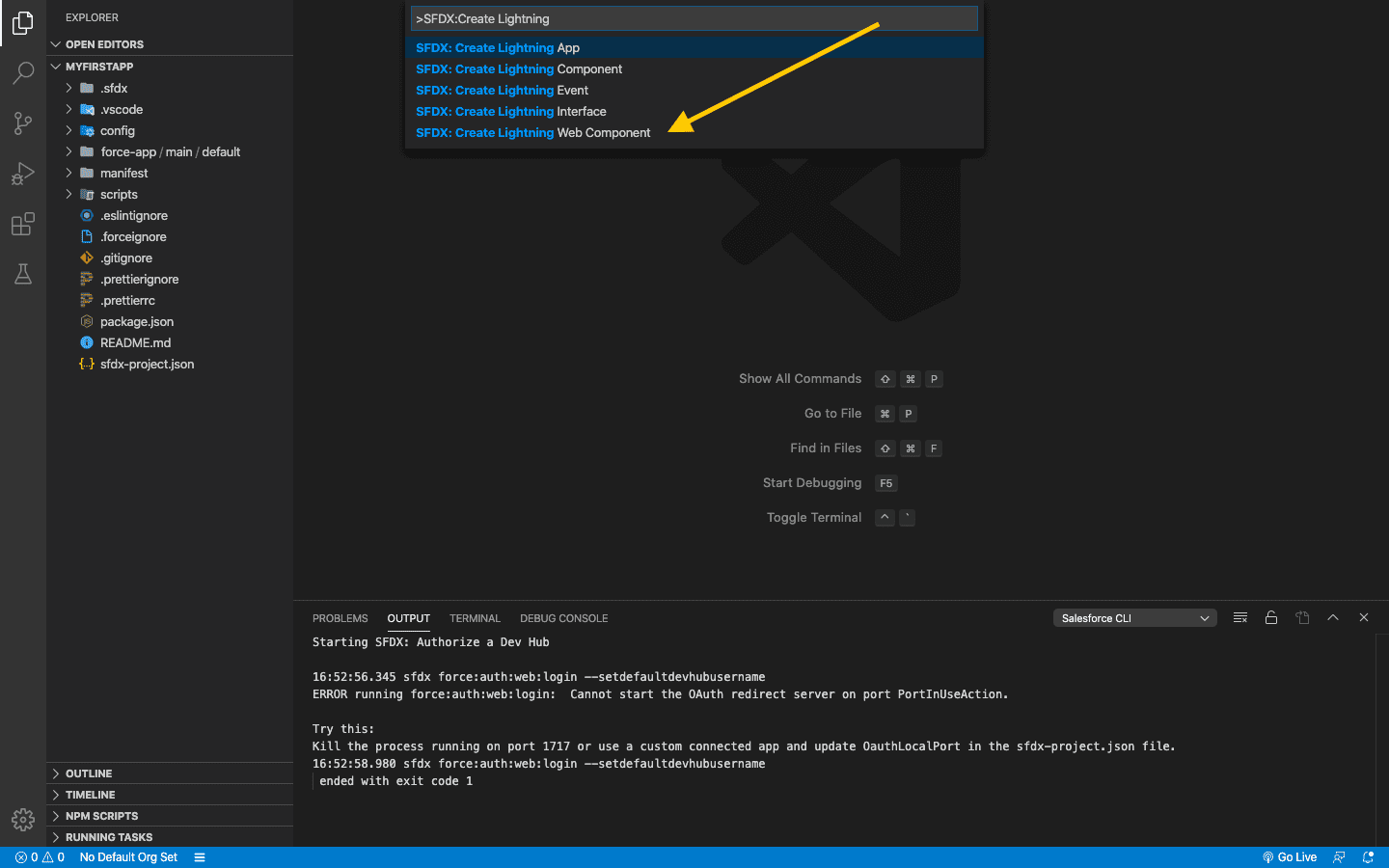
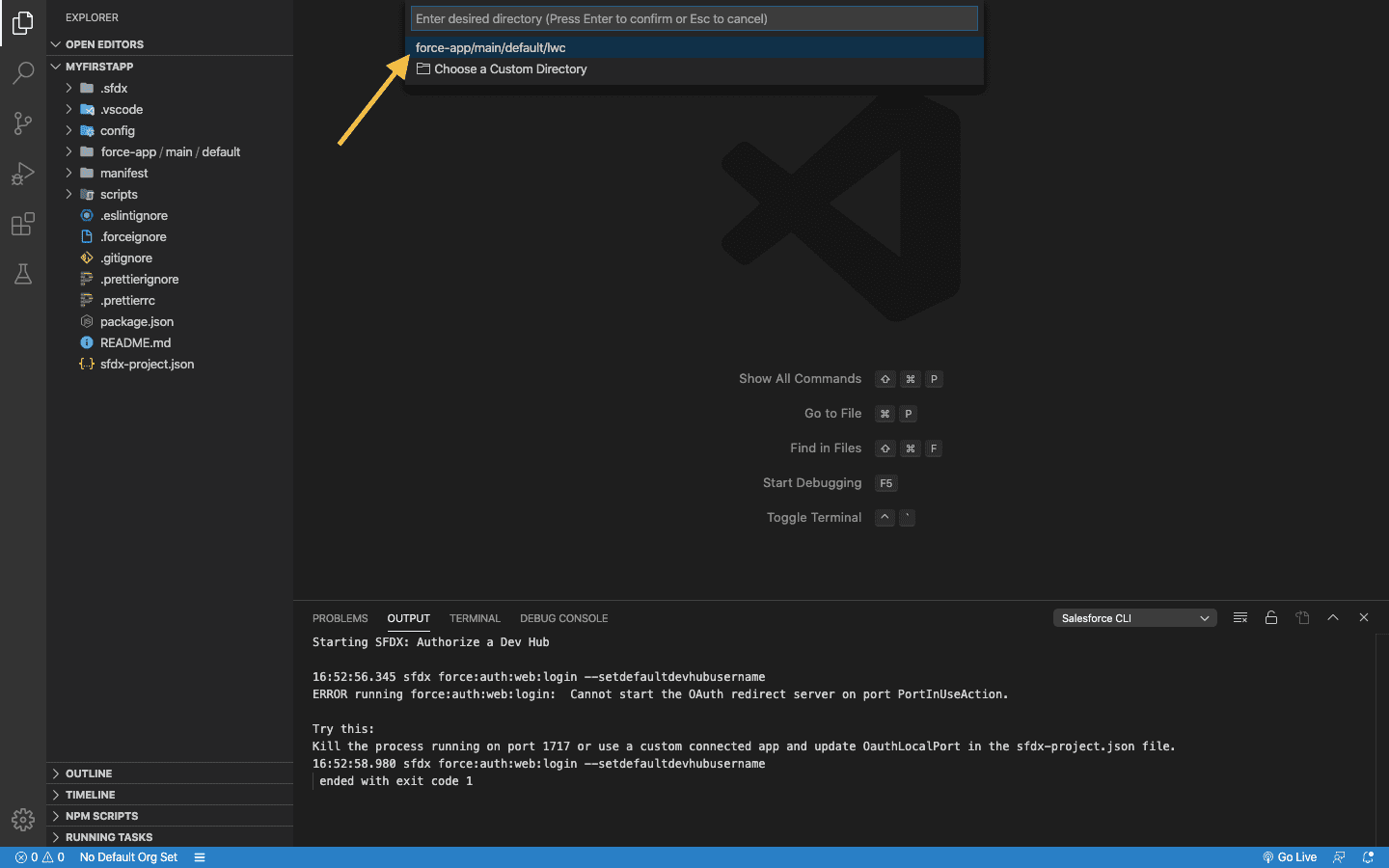
4. When prompted for the directory, press Enter to accept the default.
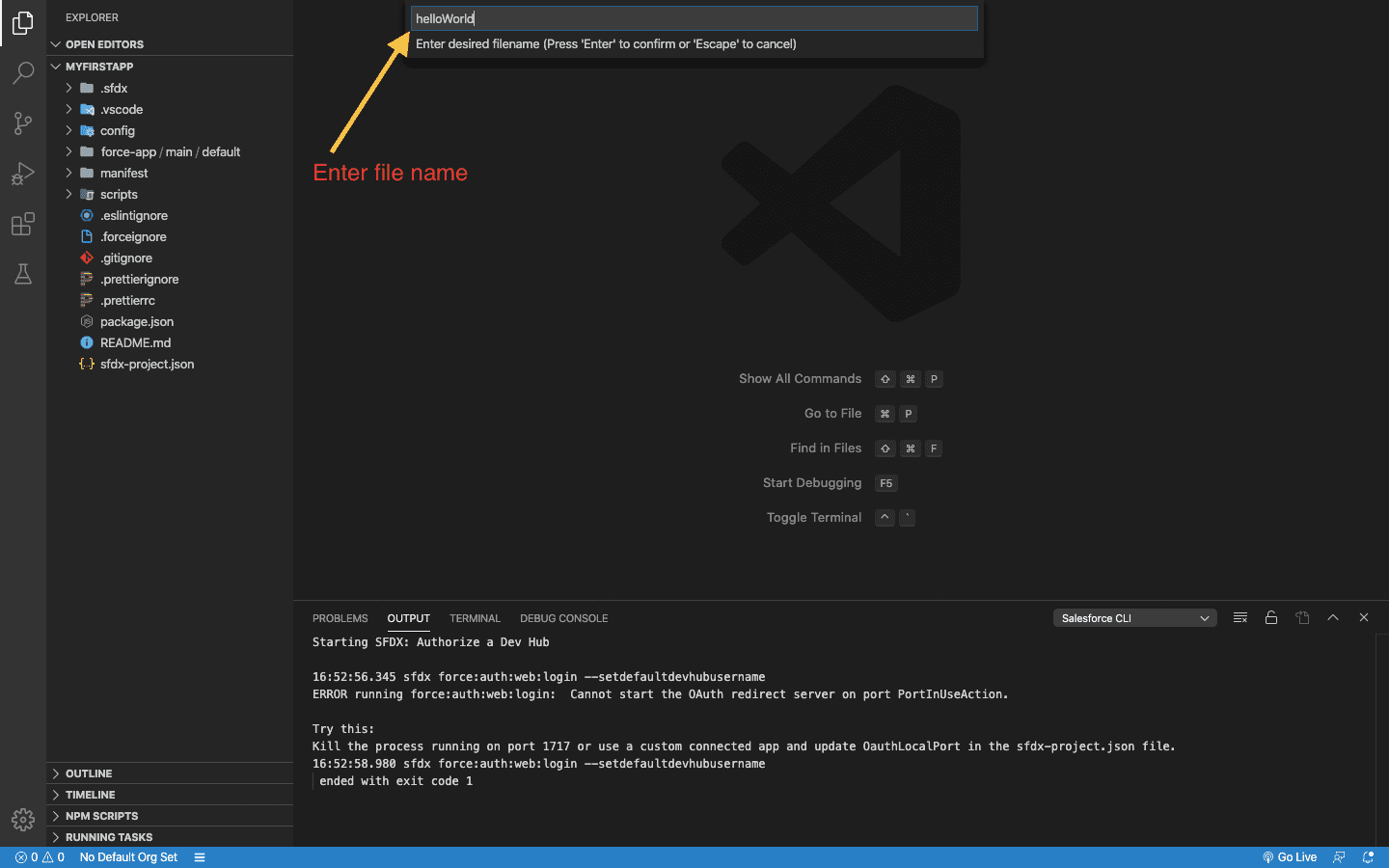
5. Enter the Lightning Web Component name. Always use camelCase, which is the recommended best practice.
6. Your component will be created inside the lwc folder.
An LWC bundle contains the following files:
- HTML file
- JavaScript file
- Metadata configuration file
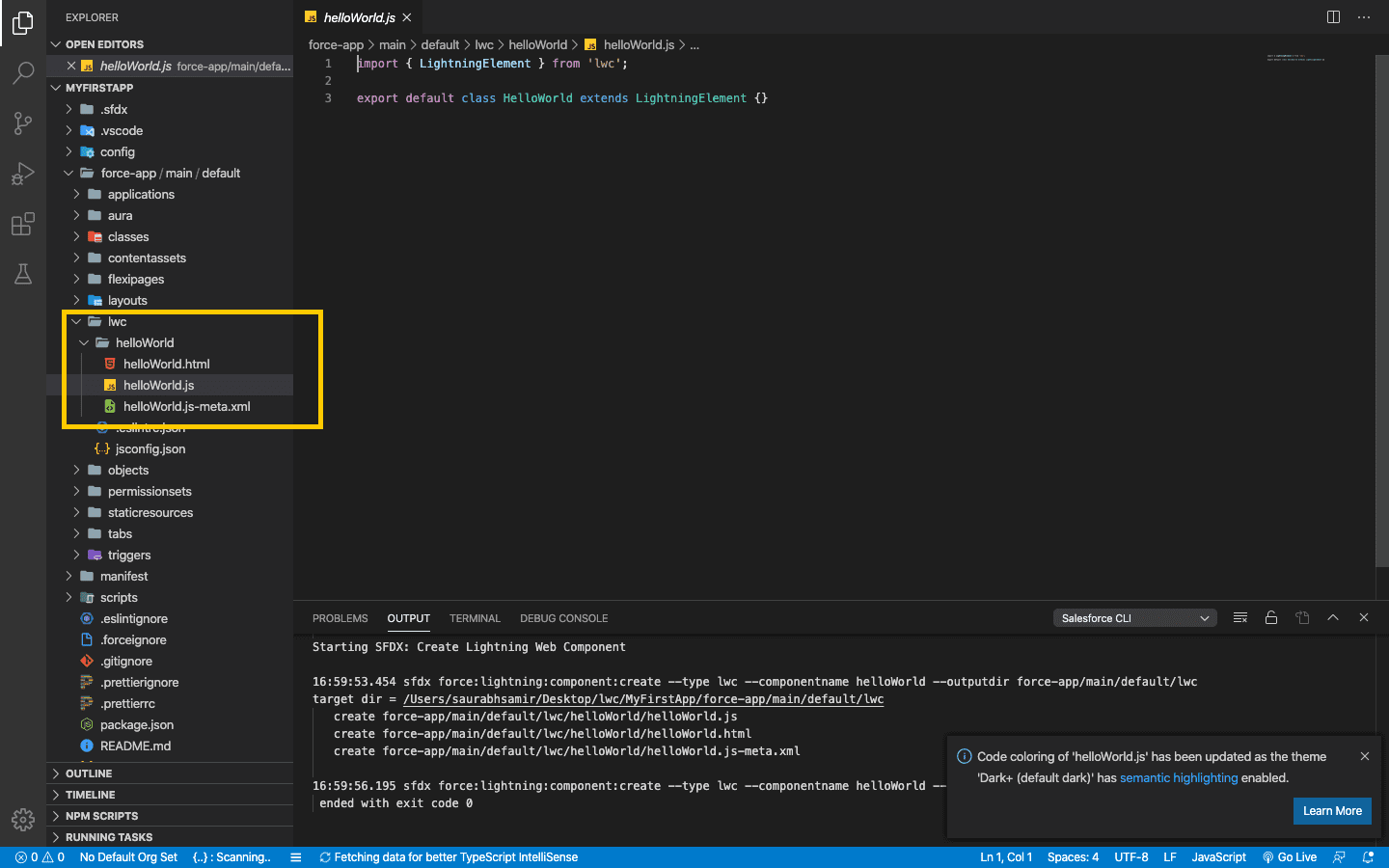
Lightning Web Component Code
Now that the Lightning Web Component is created, let’s understand how it works.
HTML File: helloWorld.html
<template>
    <lightning-card title="HelloWorld" icon-name="custom:custom14">
        <div class="slds-m-around_medium">
            <p>Hello, {greeting}!</p>
            <lightning-input
                label="Name"
                value={greeting}
                onchange={changeHandler}>
            </lightning-input>
        </div>
    </lightning-card>
</template>
JavaScript File: helloWorld.js
import { LightningElement, track } from 'lwc';

export default class HelloWorld extends LightningElement {
    @track greeting = 'LearnFrenzy World';

    changeHandler(event) {
        this.greeting = event.target.value;
    }
}
Metadata File: helloWorld.js-meta.xml
<?xml version="1.0" encoding="UTF-8"?>
<LightningComponentBundle xmlns="http://soap.sforce.com/2006/04/metadata">
    <apiVersion>45.0</apiVersion>
    <isExposed>true</isExposed>
    <targets>
        <target>lightning__AppPage</target>
        <target>lightning__RecordPage</target>
        <target>lightning__HomePage</target>
    </targets>
</LightningComponentBundle>
B. Deploy the Component to a Scratch Org
Once your component is ready, deploy it to your Developer or Scratch Org.
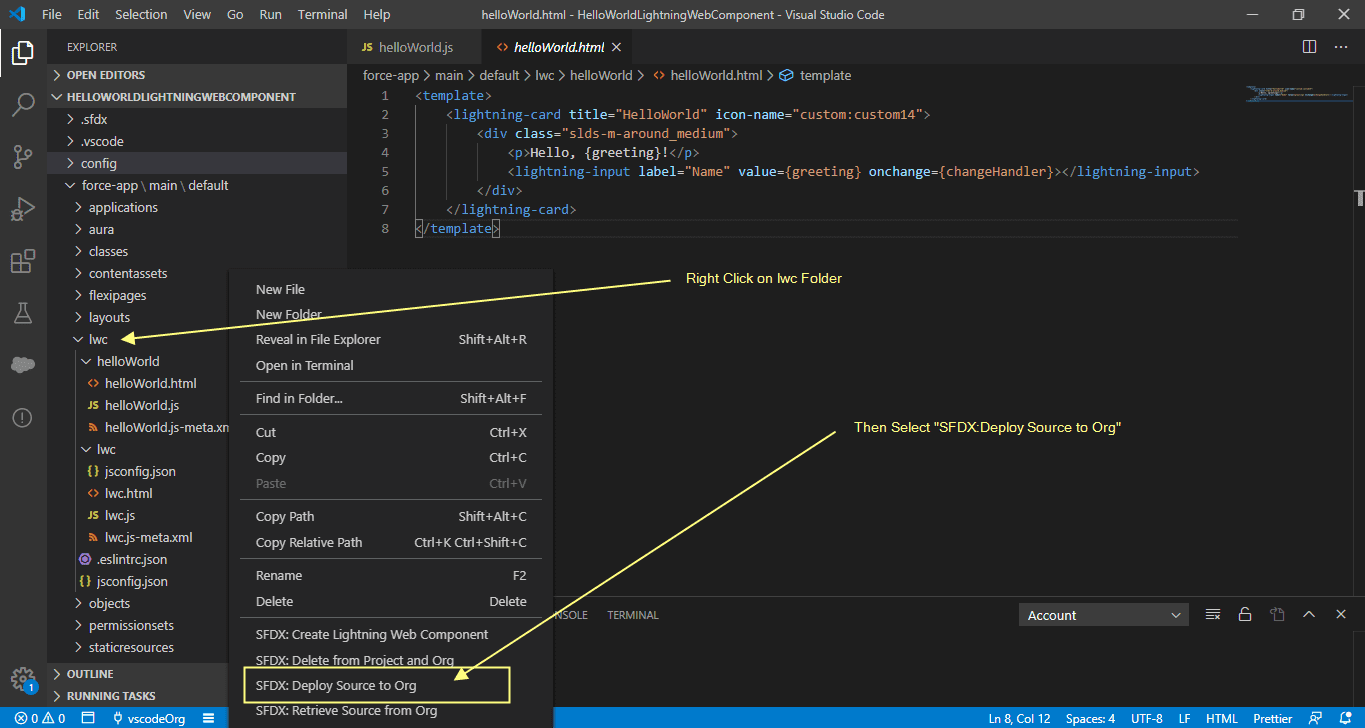
Add the Lightning Web Component to the Home Page
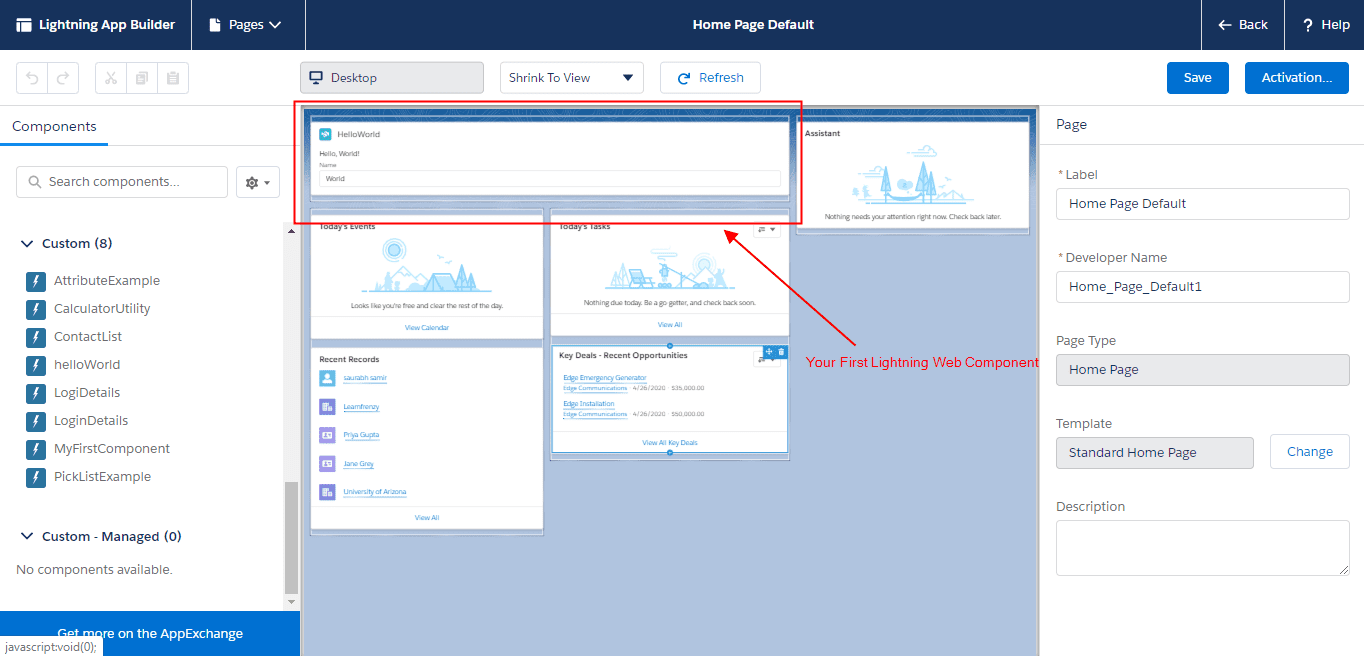
After deployment, add your component to the Lightning Home Page.
- Log in to your Developer Org.
- Open any Lightning app and go to the Home tab.
- Click the App Launcher and select the Sales app.

4. Click the Gear Icon (top-right) and select Edit Page.
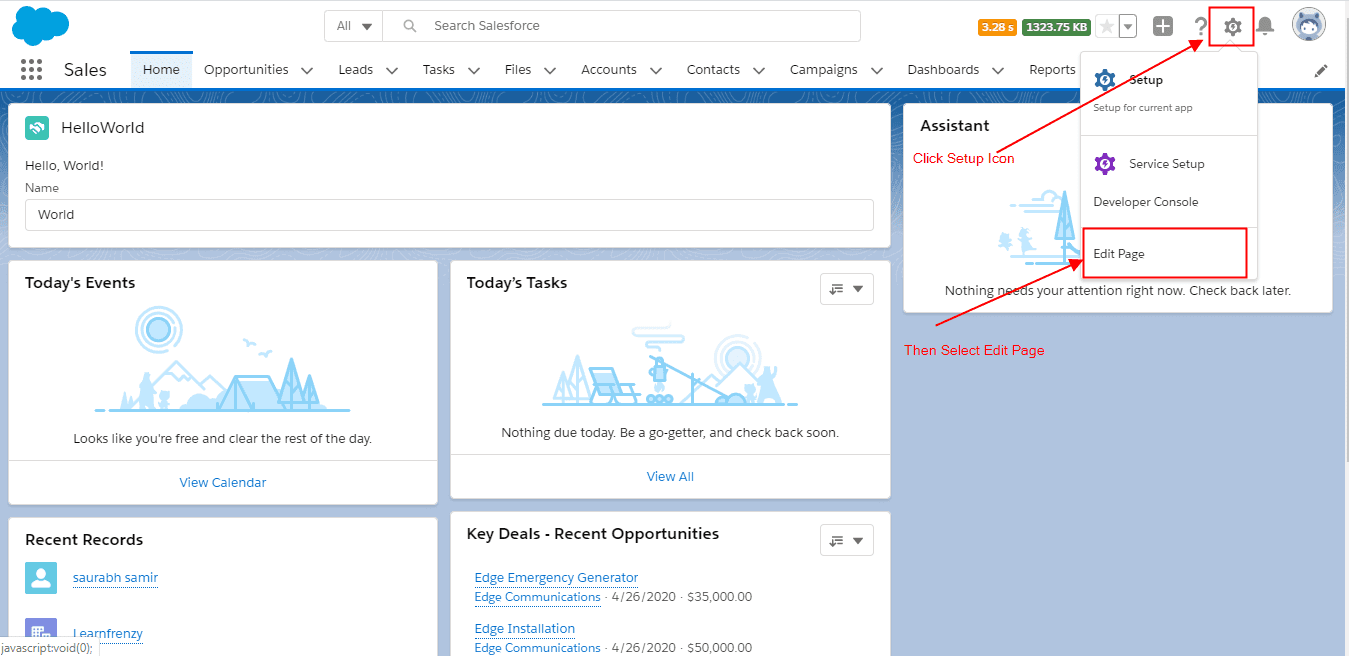
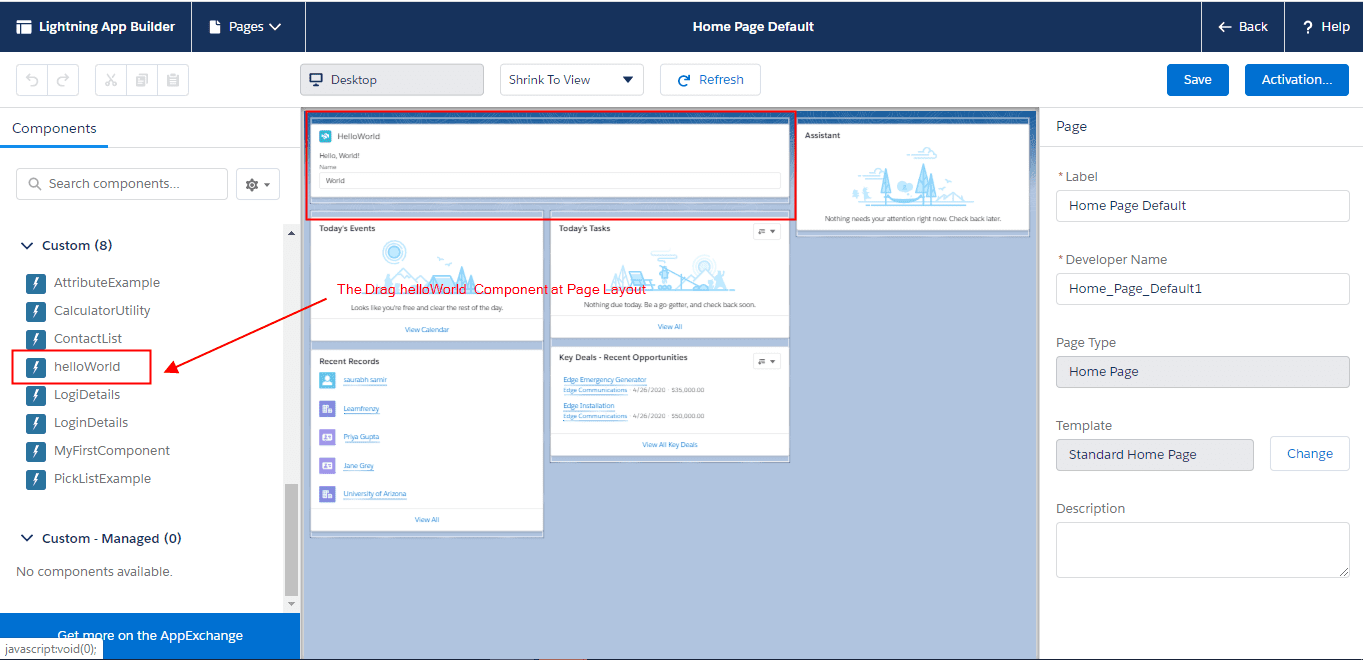
5. In the left panel, scroll to the Custom section. Drag the helloWorld component onto the page.
6. Click Activation, select
Org Default, and activate the page.
Important Note
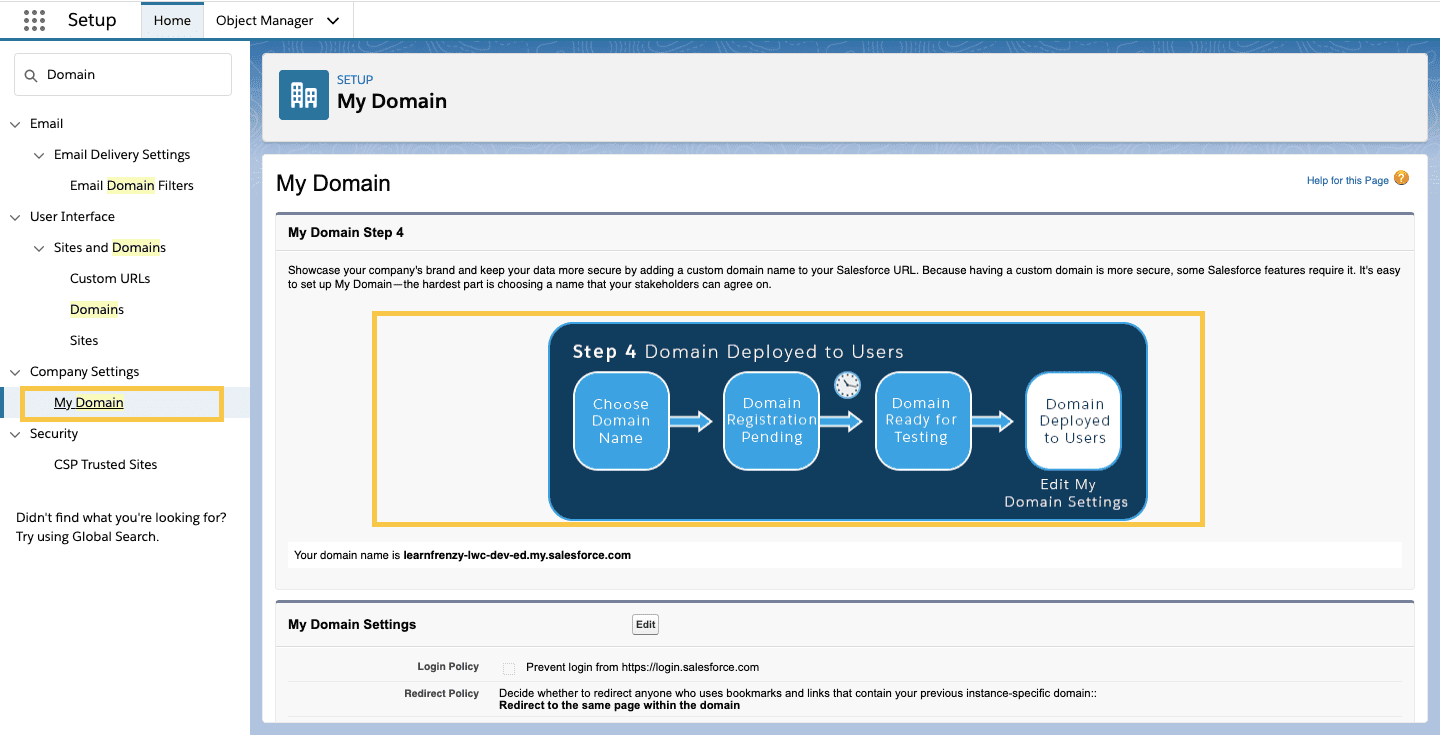
My Domain must be enabled in your Developer Org. If the domain is not enabled, custom Lightning components will not appear.
Enable My Domain from Setup before continuing.
Result
Congratulations. This is your first Lightning Web Component running successfully.
Practice What You've Learned
Test your understanding with these practice exercises