Top 30 Salesforce CPQ Interview Questions & Answers
Thirty Salesforce CPQ interview questions with answers — quote-to-cash, products, bundles, price rules, product rules, approvals and contracts.
Salesforce Workflow Rules vs Process Builder: what each automation tool can do, their limits, and when to use which — with a side-by-side comparison.
Today, Salesforce is that the world’s leading Customer relationship management solution provider that helps grow businesses efficiently. Salesforce users leverage the core capabilities and enriched functionalities of Salesforce, from sending reminders to follow up with customers to making sales projections and reporting accurately for top-level management.
Fortunately, Salesforce enables to make workflows and program tasks to automate business processes. Workflow rules and program tasks are often created with simple drop-down menus and flow charts. you'll create variety of rule-based on certain criteria you set like sending an email, task creation, or field updation. These fantastic automation features within Salesforce help eliminate manual entry of knowledge and save valuable time and efforts of sales representatives.
In this blog post, we'll discuss the Workflow rules and Process Builder and therefore the steps that are followed to make a Process Builder in Salesforce.
Workflow rules are the orders created by a Salesforce user to perform automated actions when certain conditions or series of conditions are met. These tasks can happen suddenly or can be scheduled at a particular time based on a trigger.
 Workflow Rule
Workflow is automated process that fired an action based on Evaluation criteria and rule criteria.
Various actions that are performed by Workflow:
1) Field update
2) Email alert
3) New task
4) Outbound message
Action #1
Field Updation
Displays new data after altering a field when certain conditions are met.
Action #2
Sending email (Email alert)
Salesforce users can generate preset emails by including plain text and HTML. These emails can be automatically sent when certain conditions have taken place in Salesforce. You can use mail merge for displaying the recipient’s first name, company, and other personal information.
Action #3
Assigning Task (New task)
Once predefined conditions have taken place, you can set a new task for a particular user.
Action #4
Sending a message to a different system (Outbound message)
Sending an outgoing XML message to a specific URL outside the Salesforce ecosystem.
Salesforce Workflow has two components for salespeople to get the information about the quantity, type, and results that can be expected based on a certain scenario.
Mind it!
- Coding is not required.
- We can access a workflow across the object.
- We cannot perform DML operation on workflow. Only insert and update.
- We cannot query from database.
Process builder is an automation that lets you automate the process and see the graphical representation of what have you build.
Following are the actions that you can do using process builder,
1)Create record.
2)Update related record.
3)Send emails.
4)Post to chatter feed.
5)Submit record for approval.
Mind it!
Process builder is used when you have multiple if/else conditions that need to be checked which you cannot do in the workflow. Process builder can call your apex code but workflow cannot.
With Process Builder, you perform a lot more actions than Workflow Rules such as :
But the process builder does not support outgoing messages.
1) Create Task
2) Update fields (Same Object or Master Object in Master-Detail Relationship)
3) Email notification
4) Outbound Message
Scenario 1 – If there is any change into Contact Name then you need to update the Latest Contact custom field of Associated Account with the latest Changes into the account name.
In this scenario, the Process Builder is perfect because when using workflow we cannot update related records other than master-detail.
Scenario 2 – Update Latest Opportunity custom field of Account Object with the opportunity name that was recently closed.
Workflow is the right and innovative automation tool for the scenario described above, because the relationship between Account and Opportunity is Master-Details and using workflow rule we can update the master record and the same record.
Scenario 3 – Update all related cases and Contacts with the same phone of account whenever the account phone changed.
Process Builder is the perfect tool here because we need to update all contacts and cases. There may be more than one, and the Process builder allows you to do the same thing.
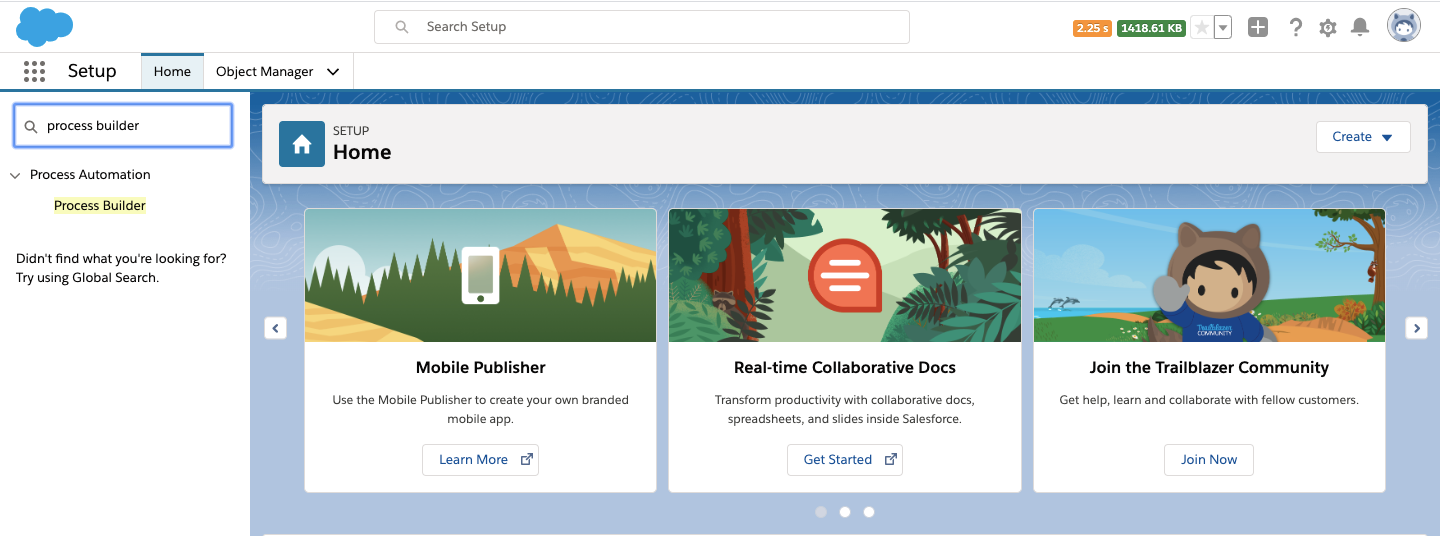
Step 1: Click on New to create a new process builder. A popup box appears where you need to fill name, description, and choose when to start the process from the following options

Then, click Save.

Now the screen will show the flowchart of what a Process Builder in Salesforce looks like.

Step 2: To begin the process, click on the Add Object. A screen appears on the right-hand side where you have to select the object name and the option to start the process and then click on save.

In an advanced option below, select yes if you want to enable the process to evaluate a record many times in a single transaction.
Step 3: Now, select criteria to evaluate the process. Click on Add Criteria, enter the name of criteria, and choose one of the below options for executing actions.

Step 4: Click on the add row to add multiple conditions.
Set the condition and select the field and select one of the conditions among:
If required, we can schedule the action by setting a schedule button that has time and date to select. To Stop the flow click on stop. We can add more flows one after another or click on the activate button to assign data in the correct format and check validation rules. Process builder can perform more actions than Workflows in Salesforce.
Process Builder or Visual representation based Workflow Rules allow users to create customized processes and personalized user experiences. Both tools provide a large selection of actions they can perform based on criteria defined by the user. Available actions can be extended by packages installed in the org. This provides another way in which you can use the features for building customized scenarios.
Process Builder has versions, so you can retain deactivated Processes. This can be very helpful if you realize something isn’t working and want to look back to what was happening before.
Lastly, one of the biggest reasons to use Process Builder, might just be because it’s the future.
According to Salesforce:
We’re no longer enhancing Workflow. We still support your use of workflow rules, and will continue to do so. But all new functionality for the workflow use case will come through Process Builder. If you want to use the shiny new functionality, migrate your automation to Process Builder.

One short email when we publish something new — interview questions, Salesforce guides and career tips. No spam, unsubscribe in one click.
Thirty Salesforce CPQ interview questions with answers — quote-to-cash, products, bundles, price rules, product rules, approvals and contracts.

The 30 Salesforce Apex interview questions asked most — collections, SOQL, DML, governor limits, triggers, async Apex and testing — with answers.
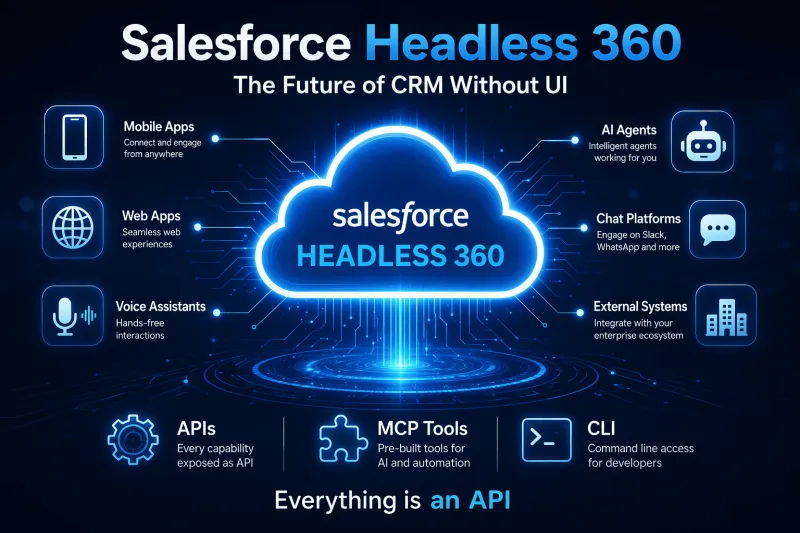
Salesforce Headless 360 explained — what headless CRM means, how APIs and data cloud power it, and what it changes for developers and businesses.
Questions, corrections or your own experience — they all help the next reader.
Ramya