Understanding Decorators and Lifecycle Hooks in Salesforce LWC
Understand LWC decorators (@api, @track, @wire) and lifecycle hooks with clear examples — what each does and when to use it in your components.
Navigate in Lightning Web Components with NavigationMixin — record pages, list views, tabs, web pages and generated URLs — with code examples.

Navigating smoothly through Lightning Web Components (LWC) is crucial for making Salesforce applications user-friendly. In this blog, we'll explore different navigation techniques in LWC, using real-world examples with code and results. By the end, you'll grasp various navigation methods, giving you the ability to design interactive and captivating user experiences. Join me on this exploration!
Navigation is the art of moving from one component to another within your Salesforce application. It's like jumping between different sections of a website, but in the Salesforce world. LWC makes navigation intuitive and flexible, allowing you to create smooth user experiences.
In this topic we will cover different way of Navigation used in LWC
Use the navigation service, lightning/navigation, to navigate to many different page types, like records, list views, and objects.
In the component’s JavaScript class, import the NavigationMixin function from the lightning/navigation module.
import { NavigationMixin } from "lightning/navigation";After importing you have to Apply the NavigationMixin function to your component’s base class
import { NavigationMixin } from "lightning/navigation";

export default class MyCustomElement extends NavigationMixin(LightningElement) {
    // Your component logic goes here
}
By applying the NavigationMixin function to your component's base class, you unlock a set of powerful navigation capabilities.
Instead of dealing with URLs, the navigation service utilizes PageReferences. A PageReference is a JavaScript object that encapsulates the page type, attributes, and state of the page you want to navigate to. Let's break down its properties:
The navigation service introduces two key APIs to your component's class, accessible via this[NavigationMixin]:
this[NavigationMixin.Navigate](pageReference, [replace])pageReference parameter encapsulates the destination page's details.Mind it!
Let's dive into an example to understand how to use the this[NavigationMixin.Navigate] method in Lightning Web Components (LWC). This method allows you to navigate to another page within your Salesforce application.
In this scenario, we'll create a Lightning Web Component button that, when clicked, navigates to the record page of a specific Salesforce record.
Implementation:
navigateToRecordButton.html
<template>
  <lightning-card title="Navigating to a Record Page" icon-name="standard:account">
    <div class="slds-m-around_medium">
      <lightning-button label="View Record"
                        onclick={navigateToRecord}>
      </lightning-button>
    </div>
  </lightning-card>
</template>
navigateToRecordButton.js
import { LightningElement } from 'lwc';
import { NavigationMixin } from 'lightning/navigation';

export default class NavigateToRecordButton extends NavigationMixin(LightningElement) {
    navigateToRecord() {
        // Create a PageReference object for navigating to a record page
        const pageReference = {
            type: 'standard__recordPage',
            attributes: {
                recordId: '001XXXXXXXXXXXXXXX', // Replace with the actual record ID
                objectApiName: 'Account', // Replace with the object API name
                actionName: 'view'
            }
        };

        // Use the Navigate method to navigate to the specified record page
        this[NavigationMixin.Navigate](pageReference);
    }
}
Explanation
navigateToRecord associated with it.NavigationMixin from lightning/navigation to leverage the navigation capabilities.navigateToRecord method is triggered when the button is clicked. Inside this method, we create a PageReference object that describes the destination page. In this case, it's a record page.NavigationMixin.Navigate method is then called with the pageReference as its parameter, initiating the navigation to the specified record page.
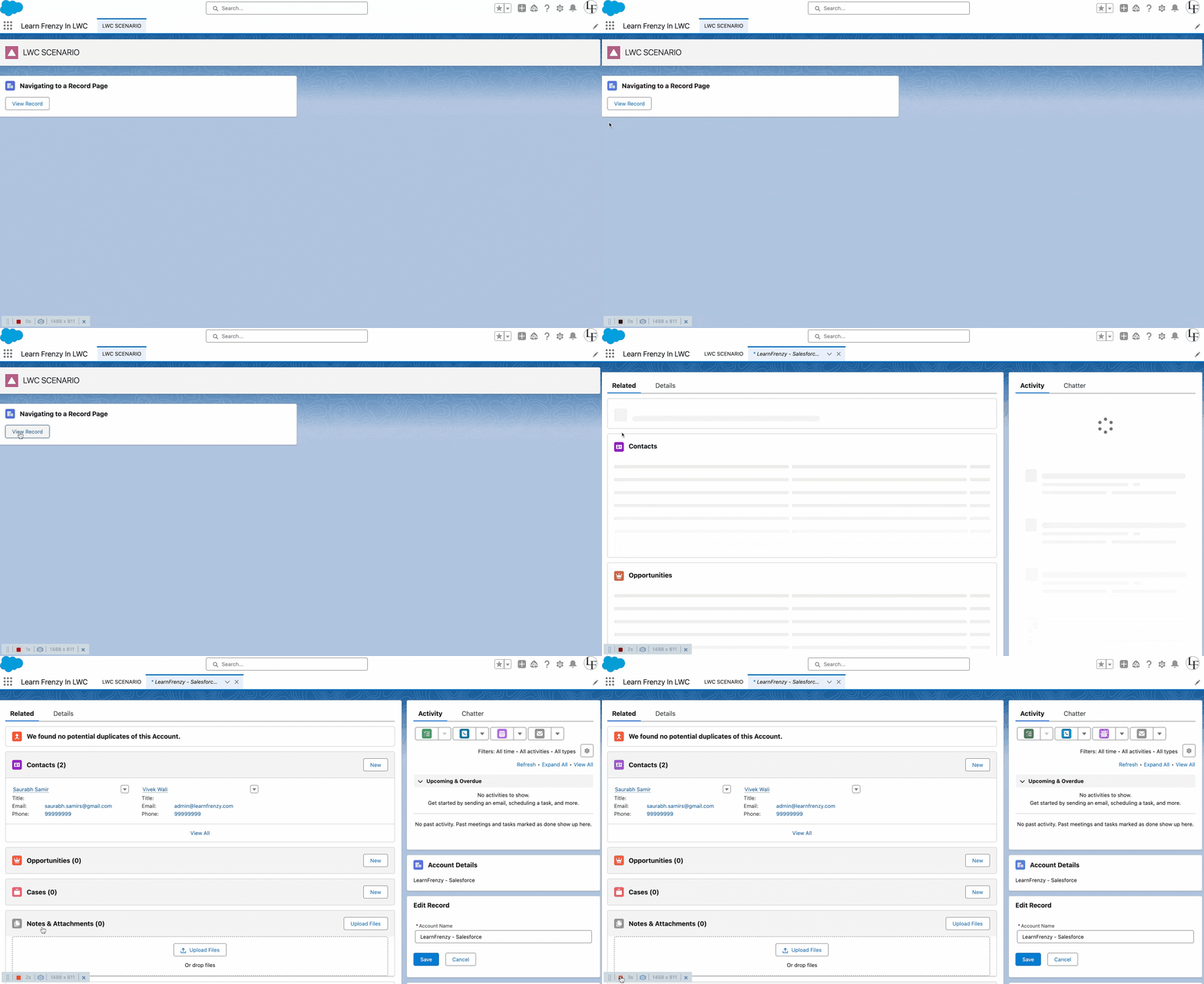
When the "View Record" button is clicked, the user will be navigated to the record page of the specified Salesforce record.
This example illustrates the use of the this[NavigationMixin.Navigate] method to dynamically navigate to different pages within your Lightning Web Components.
this[NavigationMixin.GenerateUrl](pageReference)href attribute of an anchor or to open a new window using the window.open({url}) browser API.Mind it!
Let's explore an example to understand how to use the this[NavigationMixin.GenerateUrl] method in Lightning Web Components (LWC). This method is useful for obtaining a URL that can be used in various scenarios, such as setting the href attribute of an anchor or opening a new window.
In this scenario, we'll create a Lightning Web Component that generates a URL for a specific record page. We'll then use this URL to open the record page in a new browser window.
Example Code:
generateRecordUrl.html
<template>
  <lightning-card title="Generating URL for a Record Page" icon-name="standard:account">
    <div class="slds-m-around_medium">
     <lightning-button label="Generate Record URL"
                       onclick={generateRecordUrl}>
      </lightning-button>
    </div>
  </lightning-card>
</template>
generateRecordUrl.js
import { LightningElement } from 'lwc';
import { NavigationMixin } from 'lightning/navigation';

export default class GenerateRecordUrl extends NavigationMixin(LightningElement) {
    generateRecordUrl() {
        // Create a PageReference object for generating the record page URL
        const pageReference = {
            type: 'standard__recordPage',
            attributes: {
                recordId: '0012y00000L5R6jAAF', // Replace with the actual record ID
                objectApiName: 'Account', // Replace with the object API name
                actionName: 'view'
            }
        };

        // Use the GenerateUrl method to get a promise resolving to the resulting URL
        this[NavigationMixin.GenerateUrl](pageReference)
            .then(url => {
                // Output the generated URL to the console
                console.log('Generated URL:', url);

                // Open a new browser window using the generated URL
                window.open(url, '_blank');
            })
            .catch(error => {
                console.error('Error generating URL:', error);
            });
    }
}
Explanation
generateRecordUrl associated with it.NavigationMixin from lightning/navigation to use the navigation capabilities.generateRecordUrl method is triggered when the button is clicked. Inside this method, we create a PageReference object describing the record page.NavigationMixin.GenerateUrl method is then called with the pageReference as its parameter. It returns a promise resolving to the resulting URL.Output
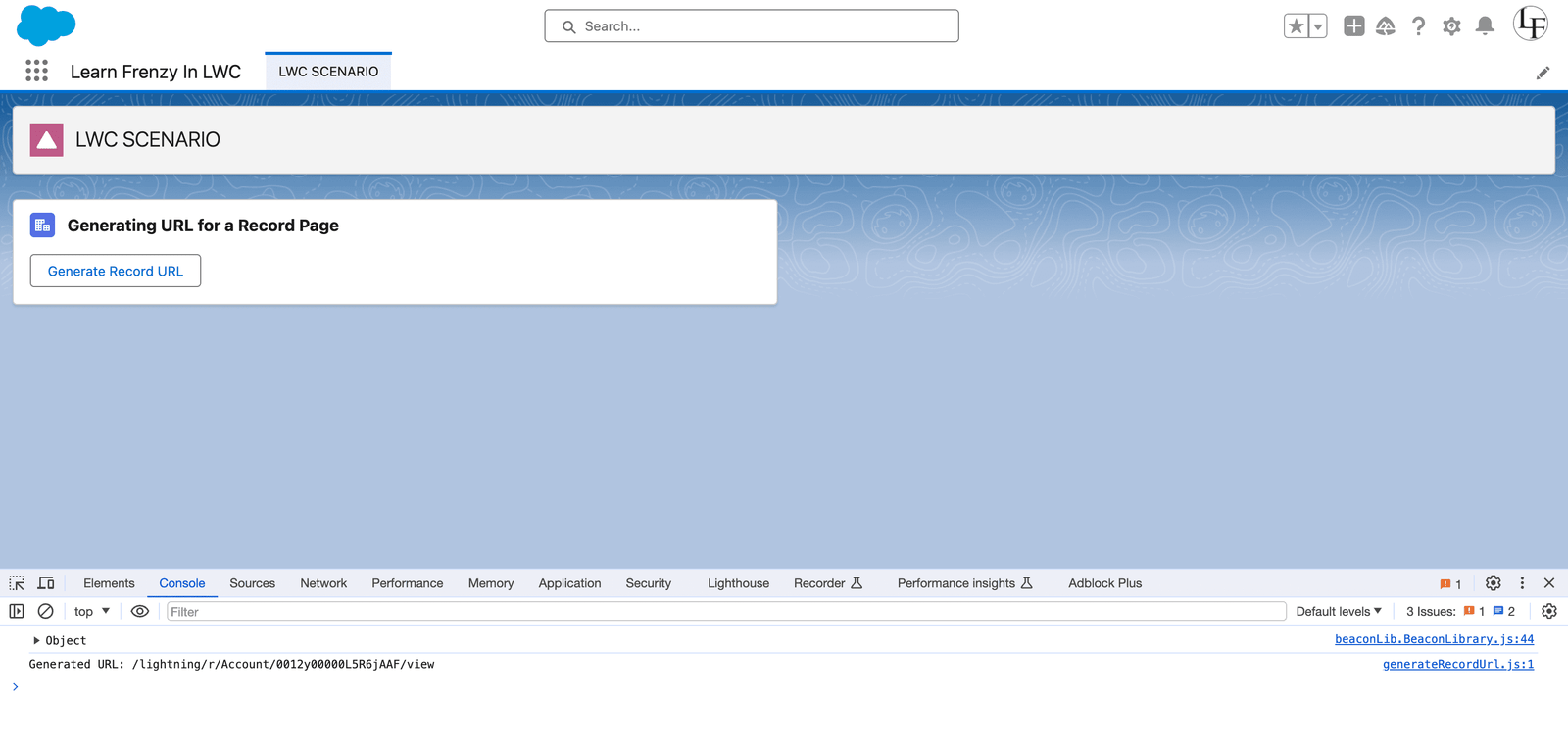
=> When the "Generate Record URL" button is clicked, the generated URL is logged to the console.
=> A new browser window is opened.
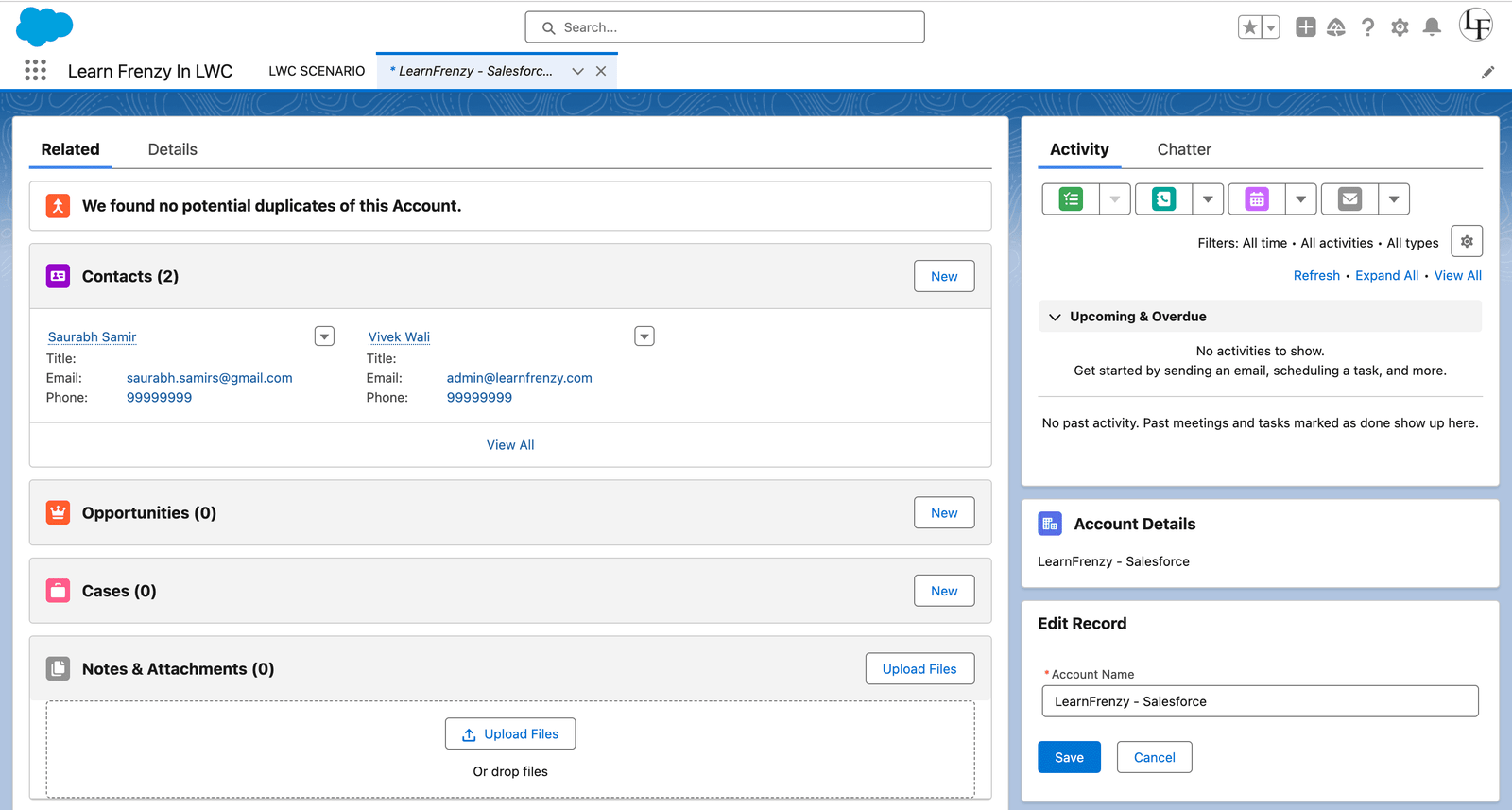
When the "Generate Record URL" button is clicked, the generated URL is logged to the console, and a new browser window is opened, displaying the specified record page.
This example demonstrates the use of the this[NavigationMixin.GenerateUrl] method to dynamically generate a URL for a specific page within your Lightning Web Components.
In Lightning Web Components, a page reference is a JavaScript object that describes the characteristics of a page. Page references are used with the NavigationMixin to navigate between different pages within the Salesforce platform.
Example Code
Here's an example illustrating different types of page references:
// ExplorePageReferences.js
import { LightningElement } from 'lwc';
import { NavigationMixin } from 'lightning/navigation';

export default class ExplorePageReferences extends NavigationMixin(LightningElement) {

    explorePageReferences() {

        // 1. Named Page Reference
        const namedPageReference = {
            type: 'standard__namedPage',
            attributes: {
                pageName: 'home'
            }
        };

        // 2. Object Page Reference
        const objectPageReference = {
            type: 'standard__objectPage',
            attributes: {
                objectApiName: 'Account',
                actionName: 'list'
            }
        };

        // 3. Record Page Reference
        const recordPageReference = {
            type: 'standard__recordPage',
            attributes: {
                recordId: '001XXXXXXXXXXXXXXX', // Replace with the actual record ID
                objectApiName: 'Account',
                actionName: 'view'
            }
        };

        // 4. Web Page Reference
        const webPageReference = {
            type: 'standard__webPage',
            attributes: {
                url: 'https://www.example.com'
            }
        };

        // 5. Custom Component Page Reference
        const componentPageReference = {
            type: 'standard__component',
            attributes: {
                componentName: 'c__myCustomLWC' // Replace with your LWC component name
            }
        };

        // Use these page references with NavigationMixin.Navigate method for navigation

    }
}
Explanation
standard__namedPage):standard__objectPage):standard__recordPage):standard__webPage):standard__component):Use Case
Understanding and exploring different page references is crucial for designing effective navigation strategies within Salesforce applications. Developers can leverage these references to create seamless and intuitive user experiences, guiding users through various aspects of the Salesforce platform.
The provided example code can be extended and adapted to specific use cases, allowing developers to integrate diverse navigation scenarios within their Lightning Web Components.
we'll explore various navigation scenarios in LWC, providing example code and expected outputs.
Example Code:
NavigateToHomePage.html
<template>
  <lightning-card title="Navigate to Home Page" icon-name="standard:account">
    <div class="slds-m-around_medium">
      <lightning-button label="Navigate to Home Page" onclick={navigateToHomePage}></lightning-button>
    </div>
  </lightning-card>
</template>
Explanation
onclick={navigateToHomePage} attribute associates the button with the navigateToHomePage method defined in the JavaScript file (NavigateToHomePage.js).This HTML code provides a basic structure for a Lightning Web Component that includes a button. When the user clicks the button, it triggers the navigateToHomePage method, leading to the navigation logic implemented in the JavaScript file.
NavigateToHomePage.js
// NavigateToHomePage.js
import { LightningElement } from 'lwc';
import { NavigationMixin } from 'lightning/navigation';

export default class NavigateToHomePage extends NavigationMixin(LightningElement) {
    navigateToHomePage() {
        const pageReference = {
            type: 'standard__namedPage',
            attributes: {
                pageName: 'home'
            }
        };
        this[NavigationMixin.Navigate](pageReference);
    }
}
Explanation
pageReference object is created, specifying the type of navigation (standard__namedPage) and the named page (home).this[NavigationMixin.Navigate](pageReference); line utilizes the NavigationMixin to initiate the navigation to the specified home page.

navigateToHomePage method is triggered.NavigationMixin is used to navigate to the standard Salesforce Home page.Use Case
This scenario is useful when you want to provide users with a quick and direct way to navigate back to the home page within your Salesforce Lightning Experience.
Key Takeaways
NavigationMixin to navigate, allowing seamless transitions between different pages in the Salesforce environment.navigateToHomePage method encapsulates the navigation logic, promoting maintainability and reusability of the code.Navigating to an object page in Salesforce Lightning Web Components involves specifying the type of navigation as standard__objectPage and providing the attributes such as the object API name and the action to perform on that object.
Let's explore this with an example:
Example Code:
HTML File (NavigateToObjectPage.html):
<template>
  <lightning-card title="Navigate to Object Page" icon-name="standard:account">
    <div class="slds-m-around_medium">
      <lightning-button label="Navigate to Account List View"
                        onclick={navigateToAccountListView}>
      </lightning-button>
    </div>
  </lightning-card>
</template>
JavaScript File (NavigateToObjectPage.js):
import { LightningElement } from 'lwc';
import { NavigationMixin } from 'lightning/navigation';

export default class NavigateToObjectPage extends NavigationMixin(LightningElement) {
    navigateToAccountListView() {
        const pageReference = {
            type: 'standard__objectPage',
            attributes: {
                objectApiName: 'Account',
                actionName: 'list'
            }
        };
        this[NavigationMixin.Navigate](pageReference);
    }
}
Explanation
NavigateToObjectPage.html):<lightning-button> with the label "Navigate to Account List View." This button serves as the user interaction trigger.NavigateToObjectPage.js):LightningElement and NavigationMixin.navigateToAccountListView method is invoked when the button is clicked.pageReference object is constructed, specifying the type (standard__objectPage) and the attributes:objectApiName`: 'Account': Indicates that the object page is related to the 'Account' object.actionName`: 'list': Specifies the action to navigate to, in this case, a list view of records.navigateToAccountListView method is triggered.pageReference object specifies the navigation type as a standard object page and provides the necessary attributes for the Account object and the 'list' action.

navigateToAccountListView method is triggered.NavigationMixin is used to navigate to the standard object page for the Account object, specifically to the list view.Use Case
This scenario is useful when you want to provide users with a direct way to navigate to a specific object's list view within your Salesforce Lightning Experience.
Key Takeaways
NavigationMixin provides a standardized and seamless way to navigate within the Salesforce platform.To navigate to an object page with default values and use encodeDefaultFieldValues, we need to import this utility from lightning/pageReferenceUtils.
import {encodeDefaultFieldValues} from 'lightning/pageReferenceUtils'This utility helps encode default field values into a format that can be included in the page reference. Let's look at an example:
Example Code:
HTML File (NavigateToObjectPageWithDefaultValue.html):
<template>
  <lightning-card title="Navigate to Object Page" icon-name="standard:account">
    <div class="slds-m-around_medium">
      <lightning-button label="Create New Account with Default Values"
                        onclick={navigateToNewAccount}>
      </lightning-button>
    </div>
  </lightning-card>
</template>
JavaScript File (NavigateToObjectPageWithDefaultValue.js):
// NavigateToObjectPageWithDefaultValue.js
import { LightningElement } from 'lwc';
import { NavigationMixin } from 'lightning/navigation';
import { encodeDefaultFieldValues } from 'lightning/pageReferenceUtils';

export default class NavigateToObjectPageWithDefaultValue extends NavigationMixin(LightningElement) {
  navigateToNewAccount() {
    const defaultFieldValues = {
      Name: 'New Account',
      Industry: 'Technology',
      Rating: 'Hot'
    };

    const pageReference = {
      type: 'standard__objectPage',
      attributes: {
        objectApiName: 'Account',
        actionName: 'new'
      },
      state: {
        nooverride: '1',
        defaultFieldValues: encodeDefaultFieldValues(defaultFieldValues)
      }
    };
    this[NavigationMixin.Navigate](pageReference);
  }
}
Explanation
NavigateToObjectPageWithDefaultValue.js):encodeDefaultFieldValues utility is imported from lightning/pageReferenceUtils.navigateToNewAccount method is modified to use encodeDefaultFieldValues to encode the default field values.navigateToNewAccount method is triggered.pageReference object specifies the navigation type as a standard object page, provides the necessary attributes for the Account object and the 'new' action, and includes default field values encoded using encodeDefaultFieldValues.
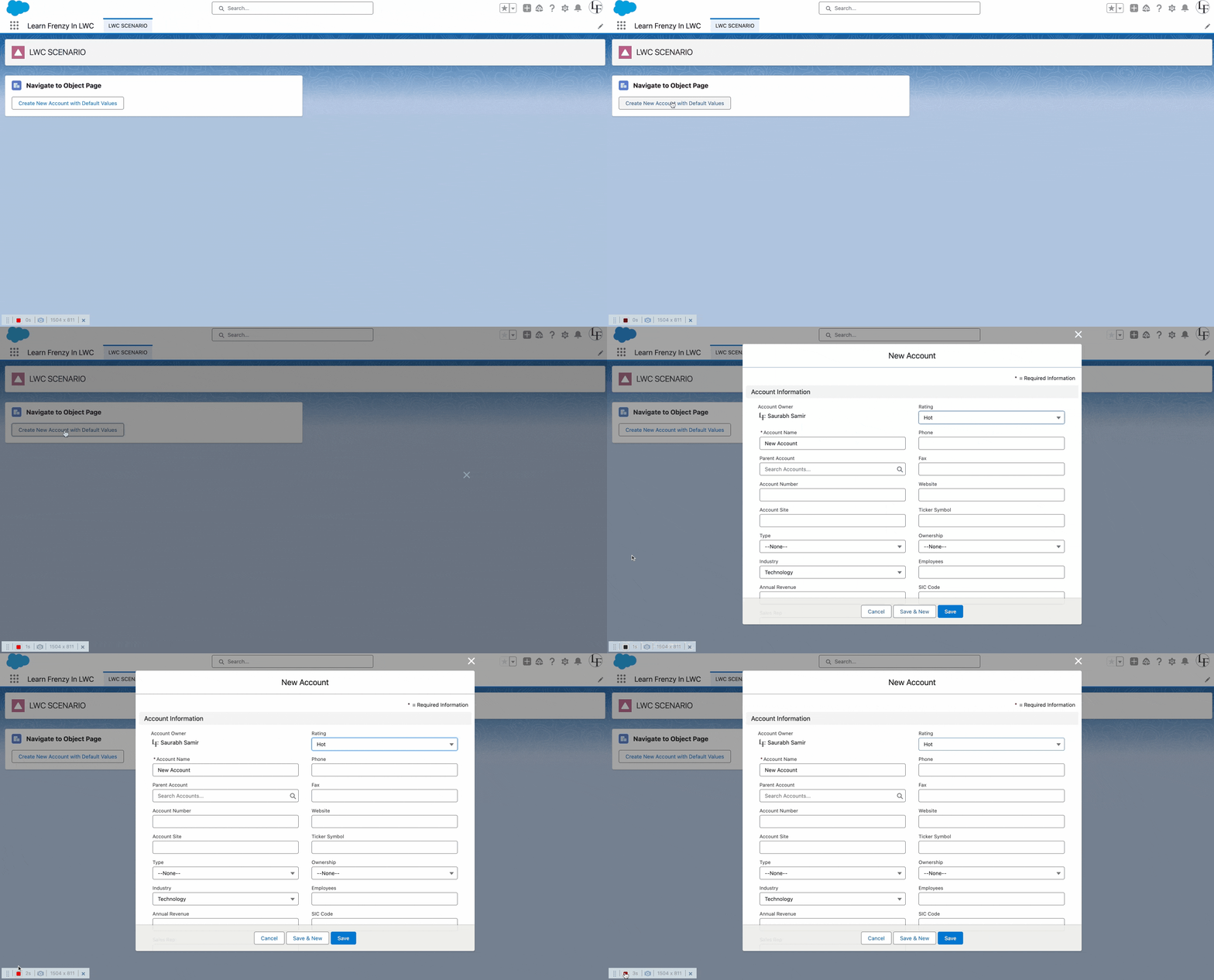
navigateToNewAccount method is triggered.NavigationMixin is used to navigate to the standard object page for creating a new Account, with default values populated for the Name, Industry, and Rating fields.Use Case
This scenario is useful when you want to provide users with a quick way to create a new record with predefined default values, and you need to encode those values using encodeDefaultFieldValues.
Key Takeaways
encodeDefaultFieldValues utility helps encode default field values in the correct format for navigation.Curious?
"Why would a developer choose to use
encodeDefaultFieldValueswhen navigating to an object page, considering that it's possible to navigate without using this utility?"
In many cases, when navigating to an object page with default field values, you may not need to use encodeDefaultFieldValues. This utility is primarily used when the default field values contain special characters or need to be formatted in a specific way.
If the default field values are simple strings without special characters, you can directly include them in the state property of the page reference without encoding them. Let me illustrate this with an example:
Example Code Without encodeDefaultFieldValues
HTML File (NavigateToObjectPageWithoutEncode.html):
<template>
  <lightning-card title="Navigate to Object Page" icon-name="standard:account">
    <div class="slds-m-around_medium">
      <lightning-button label="Create New Account with Default Values"
                        onclick={navigateToNewAccount}>
      </lightning-button>
    </div>
  </lightning-card>
</template>
JavaScript File (NavigateToObjectPageWithoutEncode.js):
// NavigateToObjectPageWithoutEncode.js
import { LightningElement } from 'lwc';
import { NavigationMixin } from 'lightning/navigation';

export default class NavigateToObjectPageWithoutEncode extends NavigationMixin(LightningElement) {
    navigateToNewAccount() {
        const defaultFieldValues = {
            Name: 'New Account',
            Industry: 'Technology',
            Rating: 'Hot'
        };

        const pageReference = {
            type: 'standard__objectPage',
            attributes: {
                objectApiName: 'Account',
                actionName: 'new'
            },
            state: {
                nooverride: '1',
                defaultFieldValues: defaultFieldValues
            }
        };
        this[NavigationMixin.Navigate](pageReference);
    }
}
In this example, we directly include the defaultFieldValues object in the state property without encoding it using encodeDefaultFieldValues.
Using encodeDefaultFieldValues becomes necessary when the default field values contain special characters that need to be properly encoded to ensure correct behavior during navigation. Otherwise, for simple string values, you can directly include them without encoding.
Conclusion
Navigating within Lightning Web Components is a fundamental skill that enhances the user experience in your Salesforce applications. Whether you're directing users to external websites, specific record pages, or dynamically determining the destination, LWC's navigation capabilities provide a smooth and intuitive journey.
Feel free to experiment with these examples, and as you become more comfortable with navigation in LWC, you'll be better equipped to create dynamic and user-friendly applications in the Salesforce ecosystem. Happy navigating!
“Stay tuned for more exciting LWC topics, and keep exploring the world of Lightning Web Components to become a Salesforce development pro.”
Happy coding with LWC!

One short email when we publish something new — interview questions, Salesforce guides and career tips. No spam, unsubscribe in one click.
Understand LWC decorators (@api, @track, @wire) and lifecycle hooks with clear examples — what each does and when to use it in your components.
JavaScript fundamentals for Lightning Web Components — scope, this, closures, promises, events and modules — explained with LWC-focused examples.

The JavaScript concepts to know before starting Lightning Web Components — variables, functions, objects, arrays, classes, modules and promises.
Questions, corrections or your own experience — they all help the next reader.